
How to setup IPTV on Openbox?

IPTV on Openbox has been one of the most popular boxes used over the years as it is affordable, simple to use and straightforward particularly if you are a CCCam user. Now as IPTV is ruling the market, some of the open box users have no choice except running the IPTV service on this setup box. What is IPTV?
Caution: RAM is something that IPTV relies on as IPTV players buffer the video first and then plays it. Openbox v8s has moderate ram and CPU, therefore after switching channels, or sometimes without any reasons, Openbox may crash. We just want you to drop your expectations while using IPTV on your Openbox IPTV Player.

The well known IPTV Player app on Openbox v8s is called WebTV. You just need to import an m3u file using USB flash drive onto your Openbox v8s and the job is finished, but there are two ways that you can do this setup. The first method is a common way, uploading the file from the WebTV app menu. When that method doesn’t work or you don’t have the “Read By USB” option on WebTV App page, the m3u file must be uploaded through Upgrade page located on Tools menu of Openbox. What is M3U?
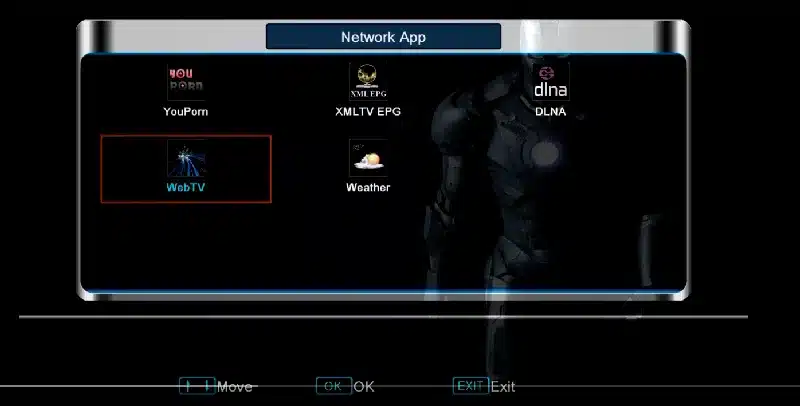
Recommendation: We suggest you rename the m3u file of your m3u line into WebTV.m3u meaning if your m3u file is like “name.m3u” you simply change “name” to “WebTV” and leave the format be as m3u. The WebTV app reads m3u files with WebTV.m3u name properly.
If you have any problems viewing the Channels we recommended that you restart your Openbox and Wi-Fi Router.
How to add IPTV channels to Openbox
Step 1: Follow these tasks:
1-Connect the USB containing the Web.m3u file
2-Open Menu
3-Move right all the way to “Multimedia”
4-From the list choose “WebTV”
Step 2: If there are channels already on that list, make sure that empty by pressing the green button: Del All. Now press the yellow button to “Read By USB” then the channels will appear.
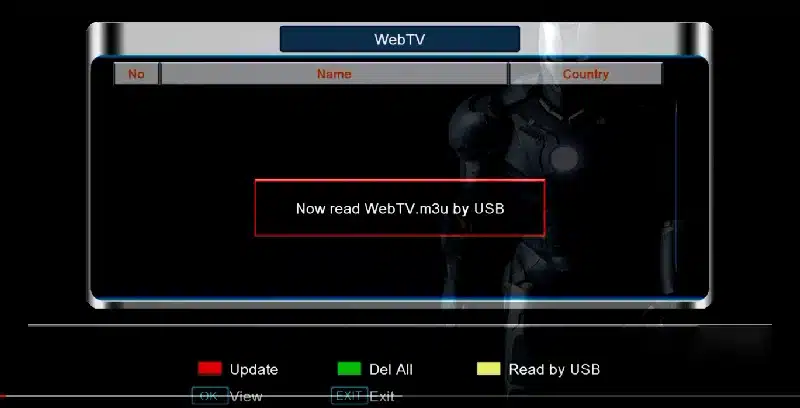
Step 3: If you don’t have the yellow option ” Read by USB”, go back to the main menu and select “Tools”.
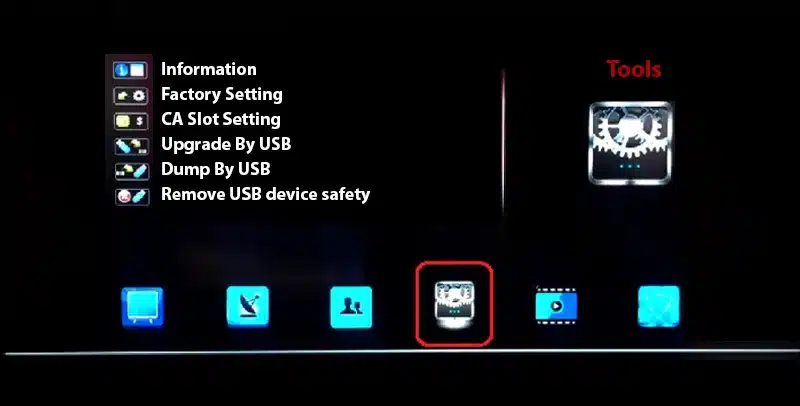
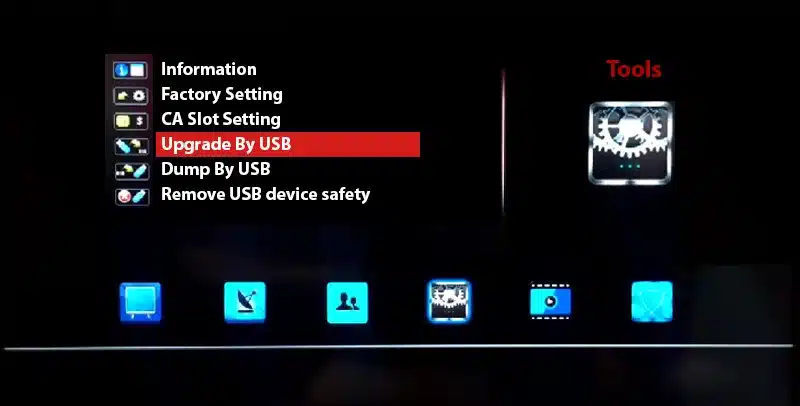
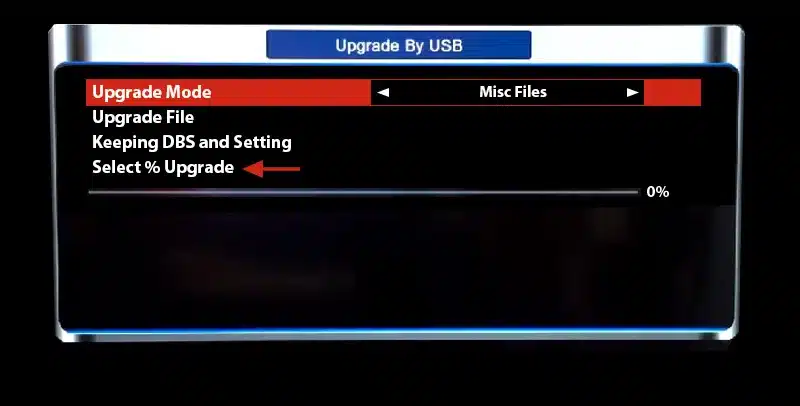
Step 4: Now select “Upgrade By USB”.
Step 5: On the next page, change Upgrade Mode to “Misc Files” and from the bottom of the list choose “Select & Upgrade”. Now press OK on it.
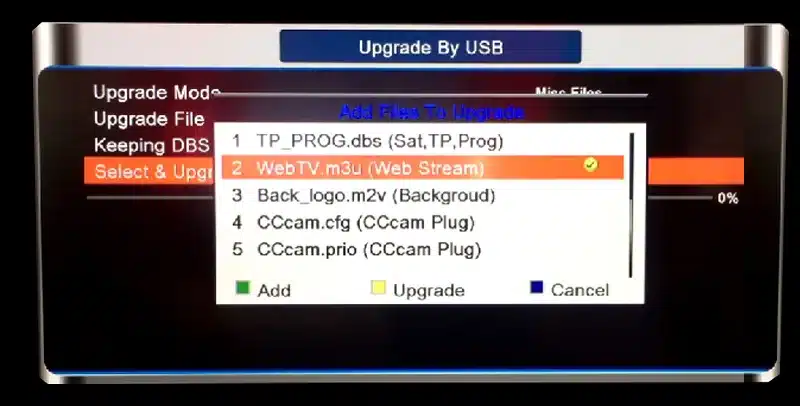
Step 6: From the window that pops up, select “WebTV.m3u (Web Stream)” and you must make sure a green tik appears on the right side. Afterward, press the yellow button to Upgrade.
After the process is done, you will see a message saying “Upgrade Finished. Press Info Key for Result”. Now press exit twice to head back to the main menu and from Multimedia open WebTV app and the channels will appear on the list.
Feel free to submit your feedback and questions regarding this article in the comment section down below and help us improve the quality of our articles. Thank you.
The features of Openbox
- Dual-Core CPU, 600 MHz MIPS Processor
- DDR III 256M, ROM 400M, Serial Flash 8M
- DVB S2 demodulator
- Fully compliant MPEG-4 H.264/AVC Main Profile Level 3 & High Profile Level 4.1;
- MPEG-2 MP@HL & MP@ML; MPEG-1 Layer I & II & III, Digital Audio (AC3);
- SCPC & MCPC receivable from C/Ku band satellites;
- Multiple LNB-Switching control (supports DiSEqC1.0/1.1/unicable/1.2/1.3 (USALS) supported)
- NIT search supported;
- Support MPEG-5;
- Support multi-lingual DVB subtitle and teletext;
- Automatic and manual channel scan options;
- Automatic service scan
- Channel-change time < 1 second
- OSD in many languages and skin-support
- Multilingual support on screen menu (OSD): English, French, Deutsch, Italian, Spanish,
- Swedish, Danish, Greece, Portuguese, Finland, Holland, Turkish, Czech, selectable

0 responses on “How to setup IPTV on Openbox?”