
How to setup IPTV on Kodi via Stalker Client?

Kodi is an open-source media player which is a free application that functions as a digital media center. You can use Kodi on most of the operating systems such as Android, Microsoft Windows, Linux, iOS, and devices such as Amazon FireTV, Smartphones, Apple TV, Xbox, and PC.
This application enables you to play your media, cast it between various devices, from a primary location to other devices. How to setup IPTV on Kodi?

Warning: Kodi Stalker is not an Official application for watching IPTV, Hackers use this application to steal IPTV line details.
How to setup IPTV Stalker on Kodi
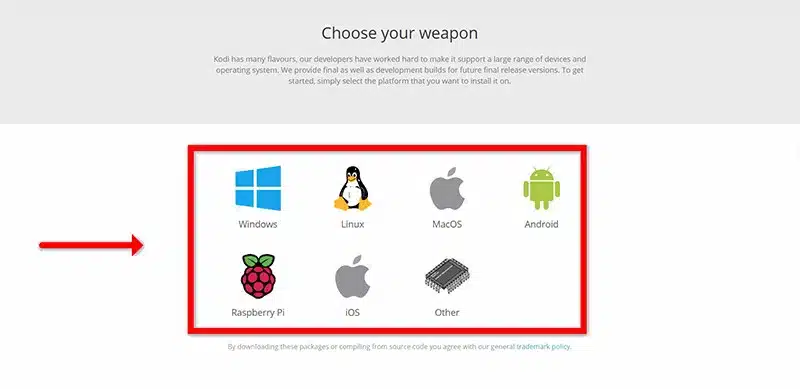
Step 1: Start by downloading Kodi based on your operating system: https://kodi.tv/download
In this case, we select “Windows“.
*Please note, here we guide how to setup IPTV in Kodi in Windows but the installation process is very similar in all operating systems.
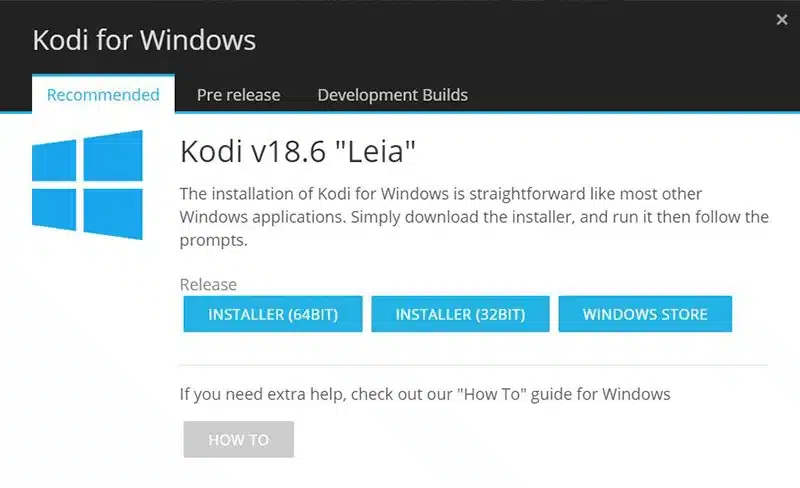
Step 2: Select 64 Bit or 32 Bit based on your operating system.
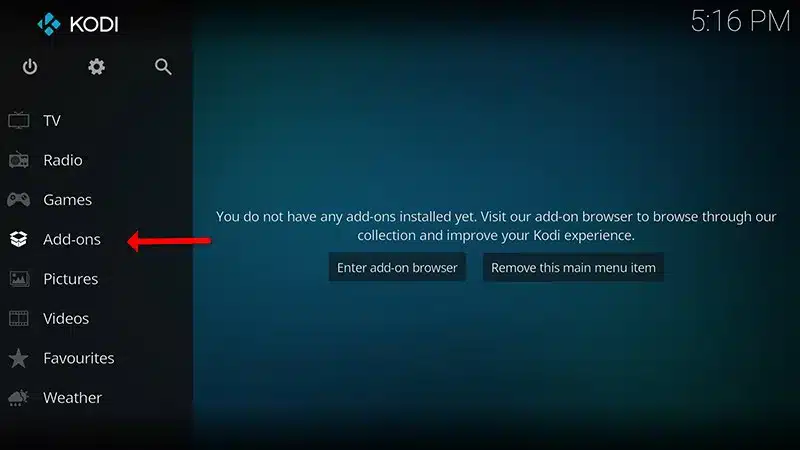
Step 3: After install and open it, click on “Add-ons“.
What is Kodi Add-on?
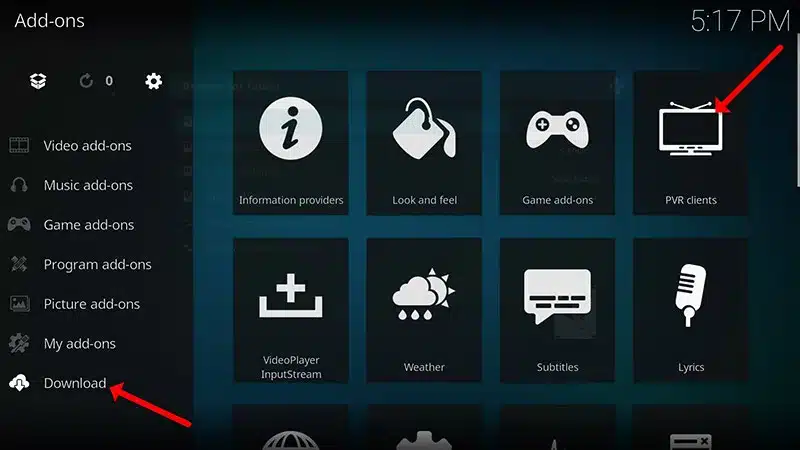
Step 4: Now click on “Download” then select “PVR clients“.
Note: We are going to download and install the PVR add-on here, after installing no need to go to the “Download“.
You can find the installed add-ons “My add-ons“
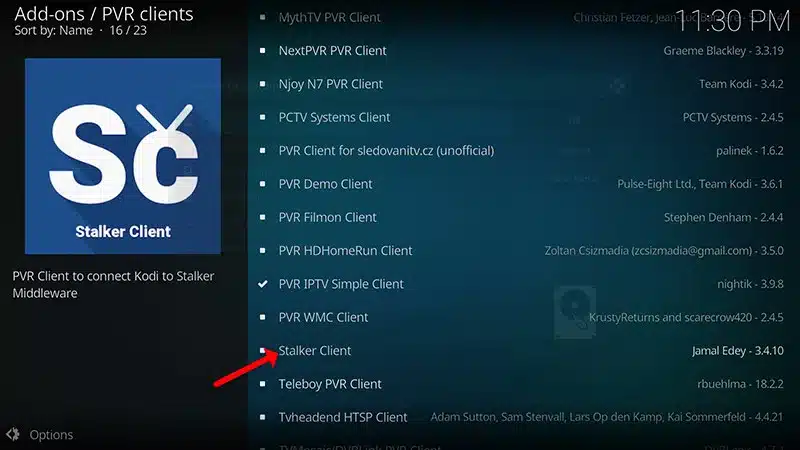
Step 5: Select “Stalker Client“.
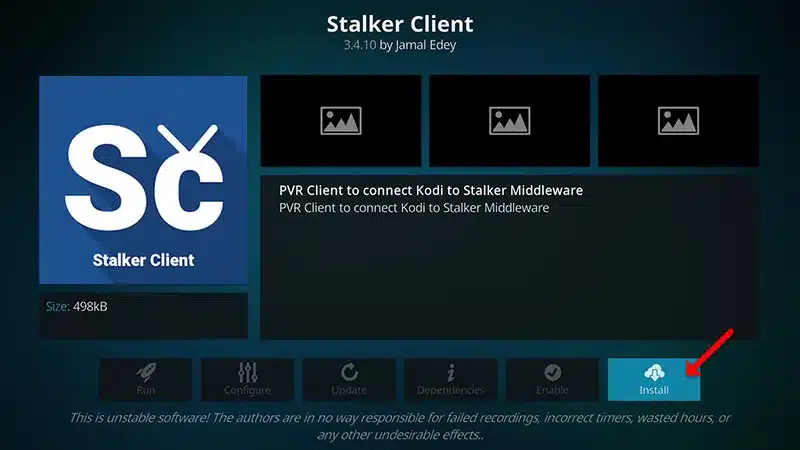
Step 6: Now click on “Install“.
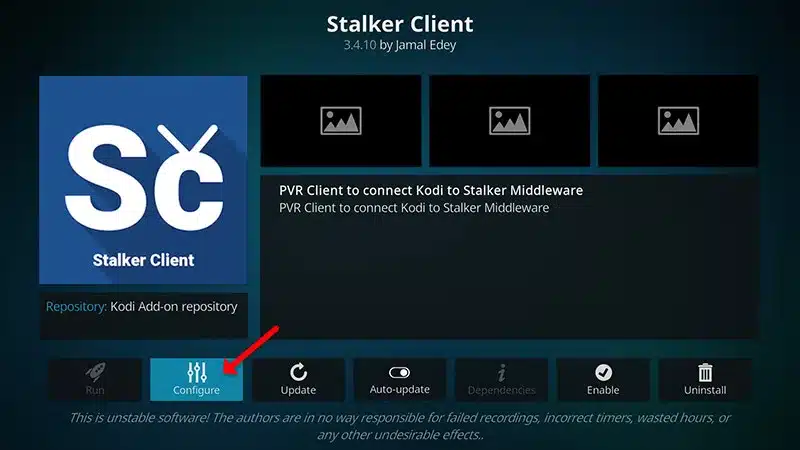
Step 7: After installing “Stalker Client” head back to “My add-ons” then “PVR Clients” and run the add-on.
Now click on “Configure“
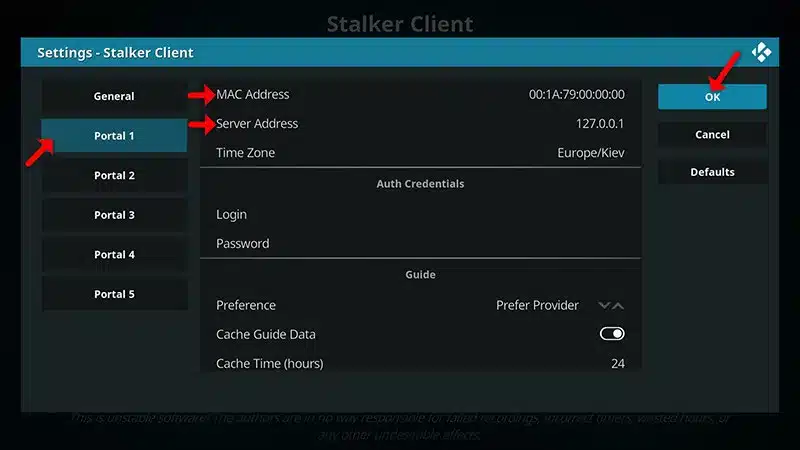
Step 8: Select Portal 1, and here add the Server address provided by your IPTV distributor and Mac Address of device. After entering the info accurately, select “OK“
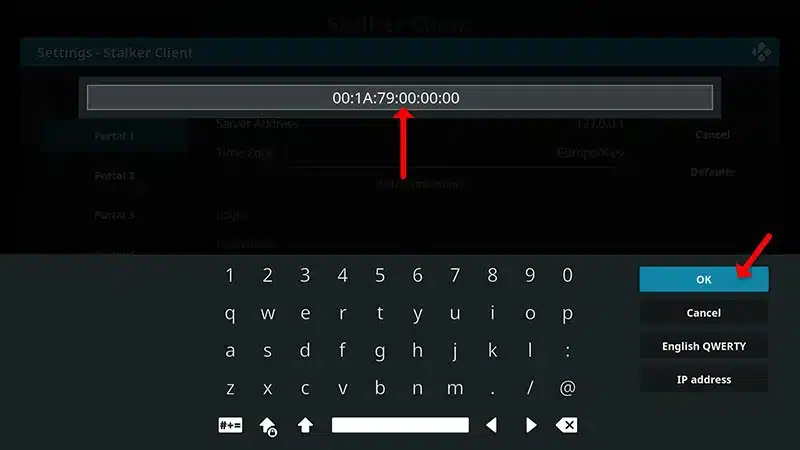
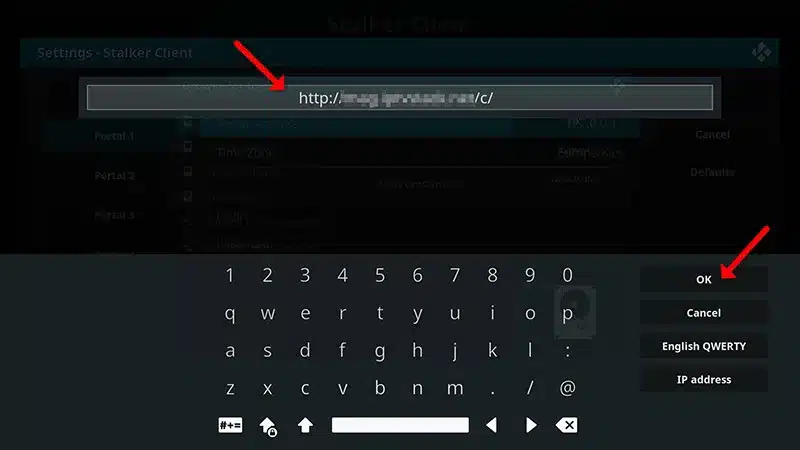
How to find the Mac address and link it to your account:
Part 1: Find your Mac address, This is a number of sorts that you are going to need to tie your device to your subscription. What is MAC address in MAG devices?
- Turn on your device and open Kodi.
- In the main menu select System and then system info.
- Select the network tab.
- Write down the last 6 characters of your Mac address (For example: If your Mac address is”2A:B3:35:03:E7:36″ then you should write down 03:E7:36)
Part 2: How to link your Mac address to your Subscription:
- Login to your panel
- Click on the change IPTV Mac address button.
- In the text field provided enter 00:1A:79: followed by the last six characters of your Mac address (For example 00:1A:79:03:E7:36)
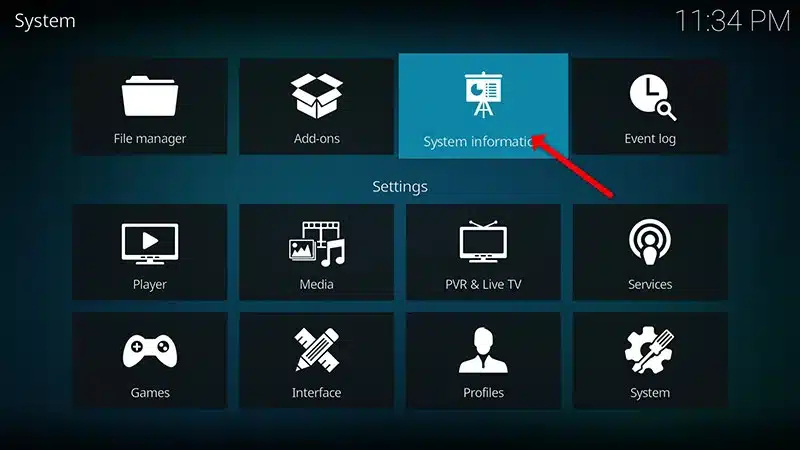
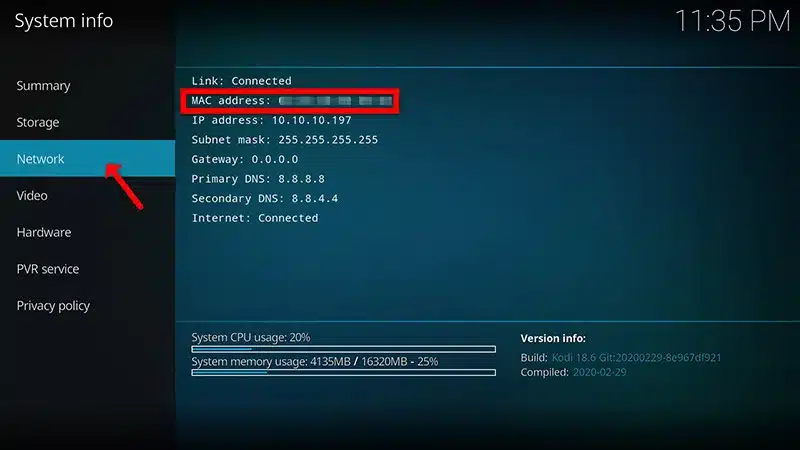
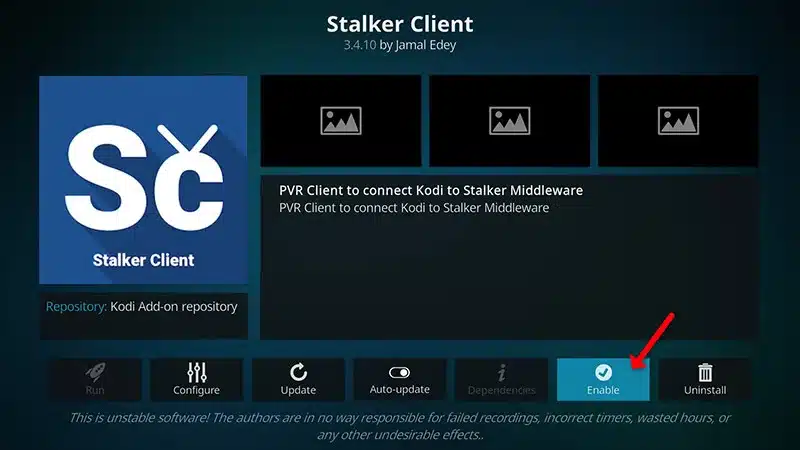
Step 9: Select “Enable“.
Note: After you enable the add-on you will see “Disable”, this means the add-on enabled so do NOT to click on “Disable” again.
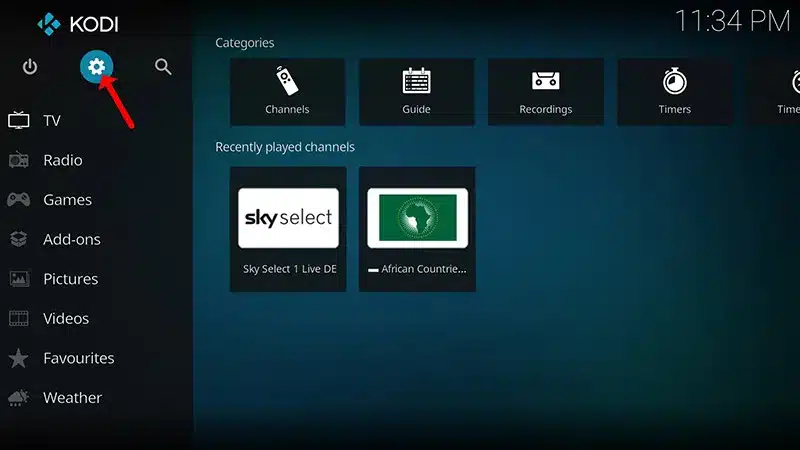
Step 10: Head back to “TV” and click on “Channels“.
In this phase, it’s important that you restart your device to avoid errors. After restart TV section will appear, click on TV.
Conclusion
Kodi is able to play virtually every media content that you can imagine and is very customizable. Kodi allows you to change the color, skin of the user interface based on your tasteful preferences. You can also download tons of various add-ons to make your entertainment world even more remarkable. Please note, this add-on works as a MAG emulator and might not function very well on all devices.

0 responses on “How to setup IPTV on Kodi via Stalker Client?”