
I Have an Old TV — Can I Still Access IPTV Services in 2026?
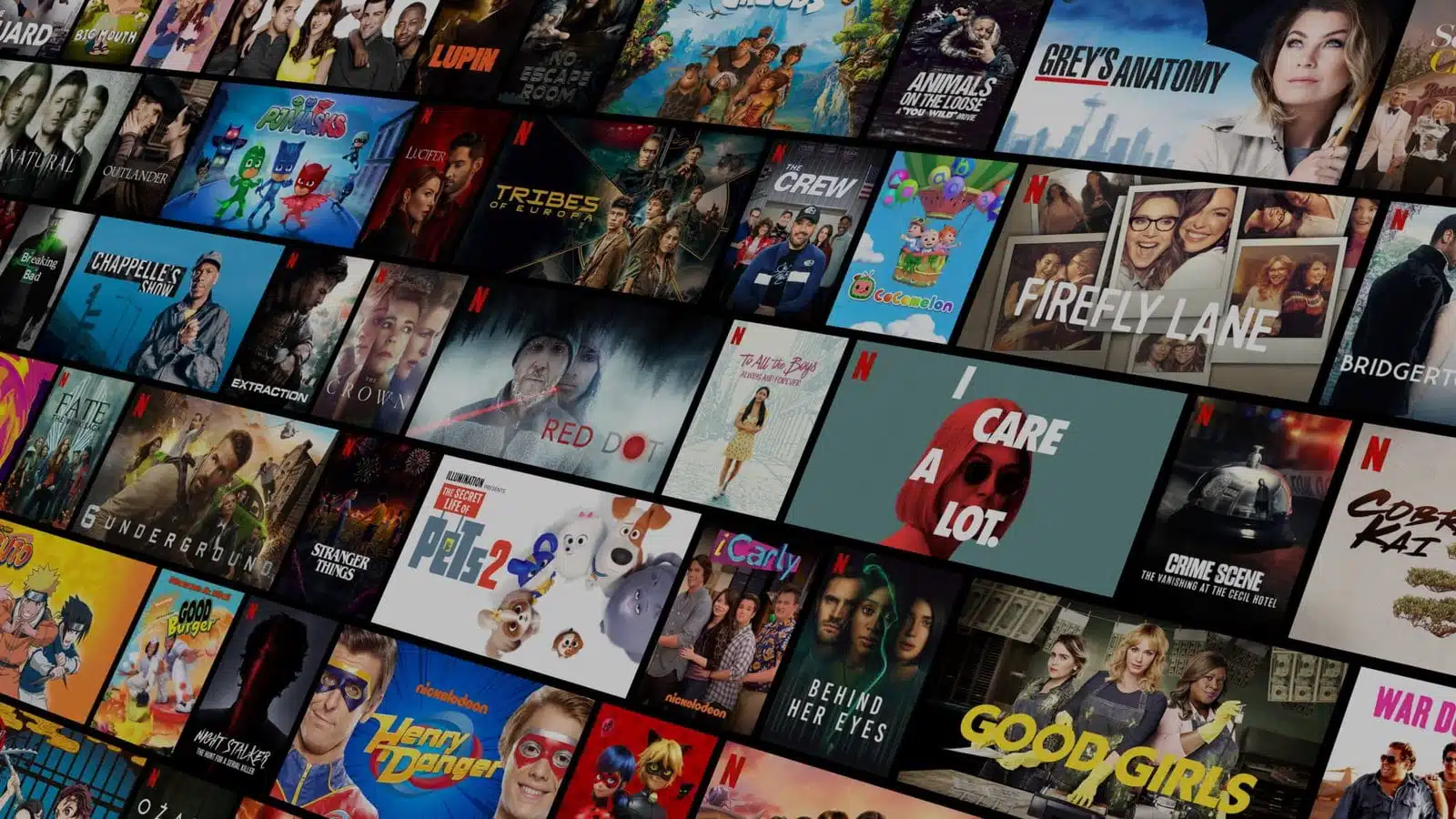
Yes — you can watch IPTV on an old TV, including models with no internet connection, no apps, and no smart features at all. IPTV does not run on the television itself; it runs on a small external device (a streaming stick, Android box, or MAG box) that plugs into an HDMI or AV port and does all the work, while your old TV just displays the picture.

Why Your Old TV Can Still Run IPTV
IPTV (Internet Protocol Television) delivers channels and on-demand video as data over your internet connection, not through a cable line, satellite dish, or antenna tuner — see Wikipedia’s overview of IPTV for the underlying technology. A television’s only real job in that chain is to display an image, and virtually any TV built since the mid-2000s can do that through an HDMI input. Even older sets with only composite AV (red/white/yellow) or coaxial inputs can usually be adapted. The set-top box (STB) or streaming stick handles the internet connection, runs the IPTV app, decodes the video stream, and outputs a signal your old TV understands. Once it’s connected, your television effectively becomes a monitor for a fully modern streaming setup — capable of live channels, catch-up TV, and video-on-demand exactly like a smart TV would offer.
For device compatibility and app downloads, see the IPTV applications page, or browse the tutorials hub for device-specific walkthroughs.
Best Devices for Watching IPTV on an Old TV
There are several categories of external device that turn a non-smart TV into an IPTV-ready screen. Which one is right for you depends on budget, technical comfort, and whether you want extra apps beyond IPTV.
Streaming Sticks and Media Players
Compact sticks plug directly into an HDMI port and are the fastest way to get an old TV online:
- Amazon Fire TV Stick — inexpensive, widely available, supports most IPTV apps via the Amazon Appstore or sideloading
- Roku Streaming Stick / Roku Premiere — simple menu system; IPTV apps available through private channels
- Google Chromecast with Google TV — cast from a phone or use the built-in Google TV interface; solid 4K support
- Xiaomi Mi TV Stick — budget Android-based stick with Google Play Store access
Android Set-Top Boxes
Android boxes run the full Android operating system, so you can install any IPTV app from the Google Play Store alongside other streaming services and games. The Nvidia Shield TV is the premium option, supporting 4K HDR, Dolby Atmos, and included game controller support. Budget alternatives like the Xiaomi Mi Box and generic Android TV boxes handle straightforward IPTV playback well.
MAG Set-Top Boxes
MAG boxes, made by Infomir, are purpose-built IPTV receivers with an interface optimized for live TV rather than a general app store. They connect to your provider through a portal URL instead of an M3U link and are known for stable, low-latency channel changes. Newer MAG models (such as the MAG540w3 and MAG544w3) run Android underneath, adding broader app support on top of the classic MAG portal experience. See the MAG box guide for a full breakdown.
Apple TV
Apple TV runs tvOS and provides App Store access to IPTV players plus Apple TV+, Disney+, and Netflix. Its Siri Remote, tight iPhone/iCloud integration, and reliable 4K HDR output make it a strong choice if you’re already in the Apple ecosystem.
Enigma2 Satellite/Cable Receivers
If you already own a satellite or cable receiver running Enigma2 firmware — common across Europe — you may be able to add IPTV support through a plugin instead of buying new hardware, letting you mix free-to-air channels with IPTV on the same box.
| Device Type | Best For | Typical Cost | Setup Difficulty |
|---|---|---|---|
| Streaming stick (Fire TV, Roku, Chromecast) | Fastest, cheapest setup | $25–$50 | Easy |
| Android box (Shield TV, Mi Box) | Extra apps + gaming | $40–$200 | Easy–Moderate |
| MAG box | Dedicated, low-latency IPTV | $60–$150 | Moderate |
| Apple TV | Apple ecosystem users | $130–$180 | Easy |
| Enigma2 receiver | Combining satellite + IPTV | Varies (often owned already) | Moderate–Advanced |
How to Connect a Set-Top Box to an Old TV
Physical setup takes under five minutes on almost any device:
- Place the set-top box or streaming stick within reach of the TV and a power outlet.
- Connect the device to power using its supplied cable or USB adapter.
- Plug one end of an HDMI cable into the device and the other into a free HDMI port on the TV. If your TV predates HDMI, use an HDMI-to-AV (composite) adapter into the red/white/yellow inputs instead.
- Turn on the TV and press Input or Source on the remote until you reach the correct HDMI (or AV) port.
- Connect the set-top box to your home internet, either over Wi-Fi using its on-screen setup wizard, or via an Ethernet cable for a more stable connection.
- Let the device finish booting, install your preferred IPTV app, and enter your subscription’s M3U URL or portal login to start watching.
A wired Ethernet connection is worth the extra cable run if your router is nearby — it removes Wi-Fi congestion as a variable and keeps latency low, which is the biggest factor in avoiding buffering on HD and 4K streams.
No HDMI Port? Screen Mirroring and Other Backup Options
If your TV is old enough to lack HDMI entirely, you still have options beyond an AV adapter. You can install an IPTV app on your phone or tablet (such as IPTV Smarters or TiviMate), then mirror the screen to the TV using an HDMI-to-AV converter cable, or AirPlay/Miracast if your setup supports it. A laptop can serve the same role: connect it to the TV with an HDMI-to-AV cable and run your IPTV app or a web player from the laptop screen. Both approaches add a layer of complexity and depend on stable Wi-Fi between the mirroring device and the TV, so a dedicated set-top box is still the more reliable long-term solution.
Choosing the Right IPTV App for Your Device
Once your device is connected, you need an IPTV player app. The best choice depends on your hardware:
- Android boxes / Fire TV: IPTV Smarters Pro, TiviMate, or GSE Smart IPTV — all well-maintained and widely supported
- Apple TV: IPTV Smarters or GSE Smart IPTV, available directly on the App Store
- MAG boxes: IPTV is built in — just enter your portal URL in device settings, no separate app needed
- Roku: use an IPTV Smarters private channel, or cast from your phone via the Roku app
All of these players accept a standard M3U playlist URL from your provider. See the supported IPTV applications list for download links and compatibility notes.
What Internet Speed Do You Need?
Picture quality and reliability on an old TV depend far more on your internet connection than on the television’s age. As a general guideline per stream:
- SD channels: 3–5 Mbps
- HD channels (720p/1080p): 10–15 Mbps
- 4K / Ultra HD channels: 25 Mbps or more
If multiple people in the household stream at once, add the requirements together. A wired connection, or a router positioned close to the set-top box, makes a noticeable difference in stability — especially for live sports and other high-motion content where buffering is most noticeable.
Ready to Get Started?
Once your device is connected, all you need is an active IPTV subscription. RevoIPTV offers flexible plans with thousands of live channels, on-demand content, and a 7-day catch-up window. Check IPTV pricing and subscription options or start a free trial before committing, and see the FAQs page for common account questions. If you plan to set up IPTV for family members or resell access, our reseller packages are worth a look too.
FAQ
Can I watch IPTV on a very old TV with no HDMI port?
Yes. Use an HDMI-to-RCA (composite AV) adapter between your streaming device and the TV’s red/white/yellow AV inputs. Video quality will be limited to standard definition, but the IPTV service itself will work normally. Some set-top boxes include a built-in AV output, removing the need for a separate adapter.
Do I need a smart TV to use IPTV?
No. Any TV with at least one HDMI port, or AV inputs plus an adapter, can run IPTV when paired with an external set-top box or streaming stick. The external device supplies all the smart features your TV lacks — internet connectivity, the app, and video decoding.
What is the cheapest way to watch IPTV on an old TV?
An Amazon Fire TV Stick or a budget Android TV box are the most affordable entry points, typically $25–$50. Both support all major IPTV apps and connect to an old TV via a single HDMI cable.
Is a MAG box better than an Android box for IPTV on an old TV?
MAG boxes are purpose-built for IPTV and excel at fast channel switching and portal-based setups, making them ideal if IPTV is your primary use case. Android boxes offer more flexibility since you can run other streaming apps alongside IPTV. See the MAG box overview to compare in detail.
Will IPTV work on a TV that only has a coaxial (antenna) input?
Not directly. You would need an HDMI-to-RF modulator to convert the streaming device’s output to a coaxial signal, but the setup is complex and video quality suffers. A simpler option is adding an inexpensive HDMI-capable monitor alongside the old set, or replacing the TV outright.
Can I mirror IPTV from my phone to an old TV instead of buying a box?
Yes, as a backup option. Install an IPTV app on your phone, then mirror the screen to the TV using an HDMI-to-AV cable or a wireless standard like Miracast or AirPlay if supported. It works, but a dedicated streaming stick or box is more stable for everyday viewing since it doesn’t depend on your phone staying connected.
Join the conversation
Read next
What Is a MAG Box? IPTV Set-Top Boxes Explained (2026)
How to Record IPTV on a MAG Box (2026 Step-by-Step Guide)
0 responses on “I Have an Old TV — Can I Still Access IPTV Services in 2026?”