
How to Set Up IPTV on the IP Television App (iPhone, iPad, Android & Apple TV — 2026)
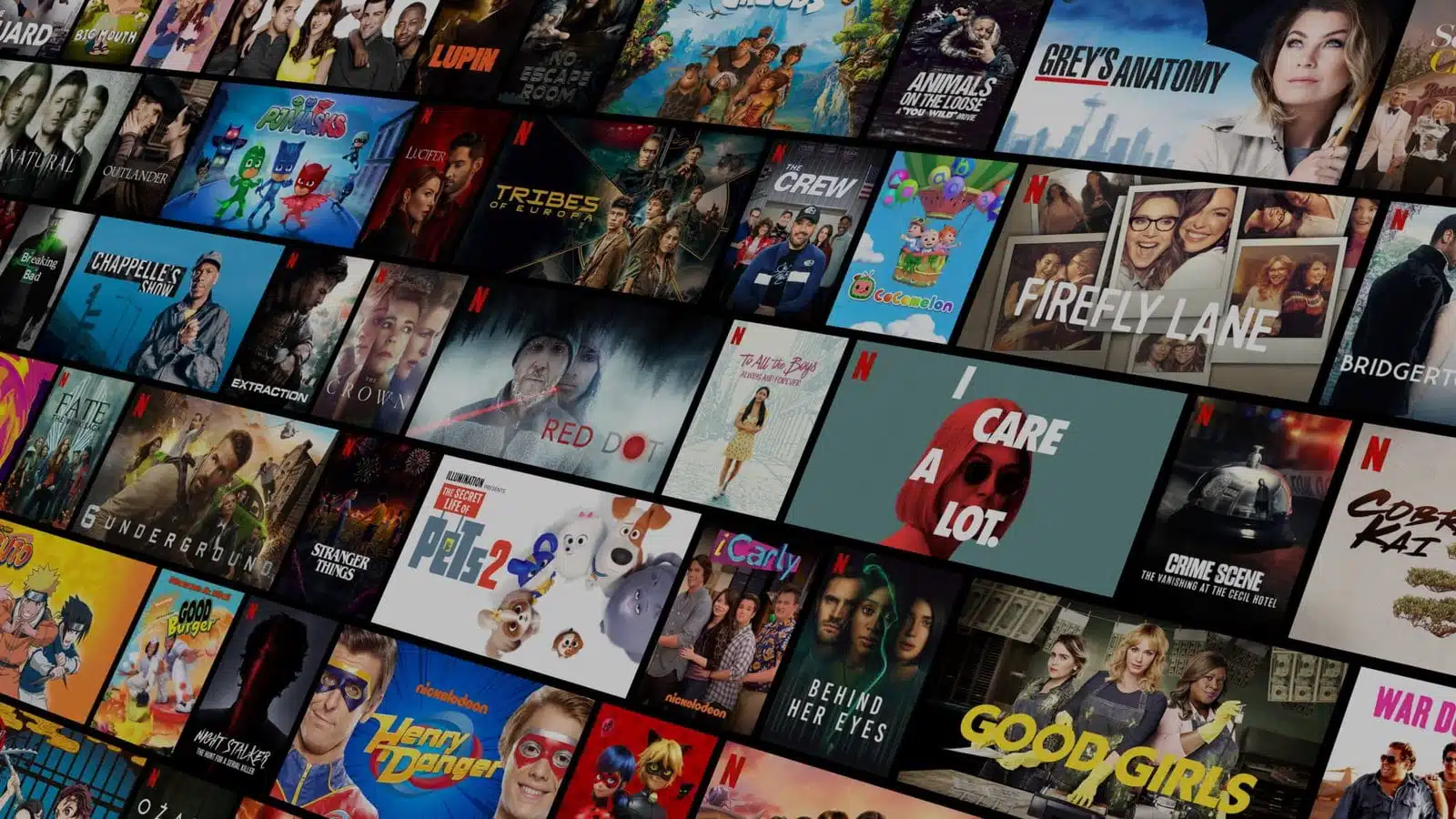
To set up IPTV on the IP Television app, install it on your iPhone, iPad, Apple TV, Mac, or Android device, then add your provider’s playlist as either an M3U URL or Xtream Codes login (server, username, password). The app loads your live channels, VOD library, and EPG within seconds — you only need an active IPTV subscription, since the app itself is a paid one-time download that does not include any channels.
What Is the IP Television App?
IP Television (developer: Paolo Rossignoli) is a dedicated IPTV player built specifically for Apple’s ecosystem — iPhone, iPad, Apple TV, Mac (Apple Silicon), and Apple Vision — with a separate, actively maintained version for Android. Unlike free ad-supported players, IP Television is a one-time paid app (around $1.99 on the App Store, with optional in-app purchases for extra features), which is why it stays free of third-party ads inside the playback screen. It uses a VLC-powered video engine, the same open-source decoder used by millions of media players, which gives it broad codec support and smoother playback on inconsistent connections than many bundled players.
The app does not supply channels, movies, or series itself — you bring your own subscription. Your IPTV provider issues either an M3U playlist URL or Xtream Codes credentials (server URL, username, password), and IP Television connects to that feed. If you don’t have a subscription yet, grab a free RevoIPTV trial to get working credentials before you start.
Download IP Television
Install the correct version for your device before following the setup steps below:
- iPhone / iPad / Apple TV / Mac / Apple Vision: IP Television: IPTV Player on the App Store (iOS 18+, iPadOS 18+, tvOS 17.6+, macOS 15+)
- Android: IP Television: IPTV Player M3U on Google Play
For a full list of tested IPTV players across every platform, see the RevoIPTV applications page.
How to Set Up IPTV on the IP Television App
IP Television supports two ways to load your channels. Xtream Codes is recommended whenever your provider supports it, because it delivers a full VOD library, catch-up TV, and organized categories through one login that stays valid for your whole subscription. Manual Load (M3U) works with any provider that only issues a playlist link, but M3U URLs can expire or need periodic refreshing depending on the provider.
Method 1: Add Channels via Xtream Codes (Recommended)
- Open IP Television and tap Xtream-Codes Account on the welcome screen, or choose it from the Add Playlist menu if you’ve used the app before.
- Name the playlist — type any label in the first box (for example, RevoIPTV). This is just for your own reference inside the app.
- Enter the server URL — paste the address from your provider’s dashboard or welcome email into the second box. It looks like
http://server.example.com:portand must include the port number. - Enter your username and password — these are the Xtream Codes credentials your provider issued, not your account login for the provider’s website.
- Tap Connect (or Load) — the app fetches your live channel list, VOD library, and any catch-up content in a single pass.
- Select a channel group — tap your playlist name, pick a category, then tap a channel to start streaming.
Method 2: Add Channels via Manual Load (M3U URL)
- Open IP Television and tap Manual Load Channels.
- Name the playlist — any label works (for example, My IPTV).
- Paste your M3U URL — copy the full link from your provider’s dashboard into the M3U URL field. It typically ends in
.m3uor.m3u8, or contains your username and password as query parameters. - Optional: add an EPG (XMLTV) URL if your provider issues one separately — plain M3U playlists often don’t bundle programme-guide data the way Xtream Codes does.
- Tap Load — the app imports every channel from the playlist.
- Browse and watch — open the playlist you just added, pick a group, and tap a channel to begin playback.
Both methods take under two minutes once you have your credentials ready. For help locating your exact server URL, username, and password inside your RevoIPTV account, visit the IPTV tutorials hub.
M3U vs. Xtream Codes in IP Television
Both connection types work, but they behave differently once loaded. Use this table to decide which to request from your provider:
| Feature | M3U URL | Xtream Codes |
|---|---|---|
| Setup fields | Playlist name + one URL | Playlist name, server, username, password |
| VOD (movies/series) | Only if the provider bundles VOD links in the same file | Loads automatically as a separate library |
| EPG (programme guide) | Usually needs a separate XMLTV URL | Built in for most providers |
| Catch-up / replay TV | Rarely supported | Supported when the provider offers it |
| Link stability | Can expire or change without warning | Stays valid for the life of the subscription |
| Best for | Quick tests, providers without an Xtream panel | Daily use, full-feature streaming |

IP Television App Features
Once your playlist is loaded, IP Television gives you more control than most budget IPTV players:
Channel management
- Add and manage multiple playlists from different providers in one app, and switch between them instantly
- Load channels via Xtream Codes, M3U URL, local file import, or manual entry
- Automatic sections and groups when the playlist includes group tags
- Favourites and fast channel search for instant access to what you watch most
- CloudKit sync — favourites and playlists carry over automatically between your iPhone, iPad, Mac, and Apple TV when signed into the same Apple ID
Viewing and playback features
- EPG (Electronic Programme Guide) — see what’s on now and next for each channel
- Video on Demand (VOD) — browse movies and series from the menu bar when your provider includes a VOD library (Xtream Codes connection required)
- VLC-powered playback with Picture-in-Picture, AirPlay to Apple TV, and Chromecast support on Android
- 19 selectable User Agent presets — useful if a provider’s server blocks the app’s default identifier; switching presets can resolve stubborn “stream unavailable” errors
- Parental controls with passcode protection to restrict adult categories
- Native apps for iPhone, iPad, Apple TV, Mac, Apple Vision, and Android — the same Xtream Codes and M3U steps apply across platforms, with minor menu wording differences
Tips for the Best Experience with IP Television
- Use Xtream Codes when available — it delivers VOD, catch-up, and EPG in one login instead of a plain playlist link.
- Save your credentials in a password manager so you can re-enter them quickly if you reinstall the app or set up a second device.
- Check your internet speed — HD IPTV streams need at least 10 Mbps; if multiple devices stream at once, budget roughly 10 Mbps per stream.
- Refresh your playlist periodically — if channels stop working, your M3U link may have changed. Log in to your provider’s dashboard for the current URL.
- Try a different User Agent preset before assuming a stream is dead — some provider servers reject the app’s default identifier but accept an alternative one.
Troubleshooting IP Television App Setup
“Connection failed” when adding Xtream Codes
Double-check the server URL format — it must include the port number (for example, http://yourserver.com:8080). Copy the URL directly from your provider’s dashboard rather than retyping it, and confirm your subscription hasn’t expired.
Channels load but video won’t play
This is usually a network issue rather than an app problem. Test on Wi-Fi and mobile data separately — some mobile carriers block the ports IPTV streams use. If neither connection plays the stream, contact your provider to confirm the channel is live on their end.
“Stream unavailable” or playback stalls on specific channels
Open the playlist settings and cycle through a couple of the app’s User Agent presets — several IPTV server setups filter requests by user agent, and switching resolves this without touching your credentials.
EPG not displaying schedule information
EPG data populates after the playlist finishes loading — give it a minute and refresh. If it stays blank on an M3U connection, your provider likely isn’t bundling programme-guide data in that file; add a separate XMLTV URL if they offer one, or switch to Xtream Codes, which usually includes EPG by default.
App is slow or crashes after adding a large playlist
Very large M3U playlists (10,000+ channels) can slow the app on older devices. Ask your provider for a filtered M3U URL limited to the countries or packages you actually use — most providers offer this from their dashboard.
Compare subscription options and start streaming today: see RevoIPTV pricing and plans, or browse reseller packages if you’re setting up channels for clients.
FAQ
Is the IP Television app free?
No — IP Television is a paid app, priced around $1.99 on the App Store, with optional in-app purchases. You also need a separate paid IPTV subscription from a provider to supply the M3U URL or Xtream Codes credentials; the app purchase itself does not include any channels.
What is the difference between M3U and Xtream Codes in IP Television?
M3U is a simple playlist URL that loads your live channels and can expire or change over time. Xtream Codes uses a server address, username, and password to connect to your provider’s full platform, giving you live channels, VOD movies and series, and often catch-up TV through one stable login. Use Xtream Codes whenever your provider supports it.
Can I use IP Television on Apple TV?
Yes. You can install IP Television directly from the tvOS App Store on Apple TV (4th generation and later, tvOS 17.6+) for a native big-screen experience, or stream from your iPhone or iPad to Apple TV using AirPlay.
Does IP Television work on Android?
Yes. IP Television: IPTV Player M3U is available separately on Google Play and supports the same Xtream Codes and M3U setup process as the iOS version, along with Chromecast casting.
Where do I find my Xtream Codes server URL, username, and password?
Your IPTV provider sends these when you subscribe, usually in a welcome email or your account dashboard. For RevoIPTV, log in to your dashboard to find your Xtream Codes details, or check the RevoIPTV FAQs for a walkthrough.
How many playlists can I add to IP Television?
IP Television supports multiple playlists at once. Add as many providers as you need — each appears as a separate entry in the app’s playlist manager, and you can switch between them or remove them at any time.
Join the conversation
Read next

What Is a MAG Box? IPTV Set-Top Boxes Explained (2026)
How to Record IPTV on a MAG Box (2026 Step-by-Step Guide)
1 response on “How to Set Up IPTV on the IP Television App (iPhone, iPad, Android & Apple TV — 2026)”