
How to Update MAG Box Firmware (2026 Guide)

To update MAG box firmware, disconnect it from the internet, power-cycle it until you see a “Page Loading Error” screen, then reconnect and choose the Embedded Portal option to auto-install the latest version — or use the USB method if the over-the-air update fails. Both methods are free, take 5–15 minutes, and require no special tools beyond a USB drive.
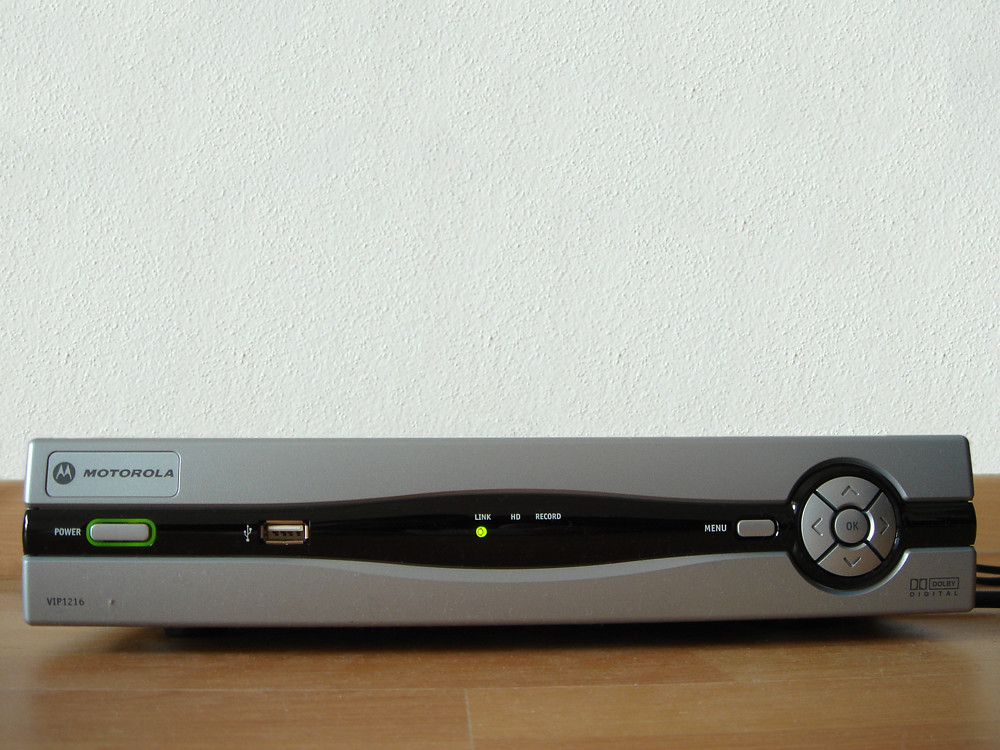
Why You Should Update MAG Box Firmware
MAG set-top boxes run Linux-based firmware built by Infomir, the Ukrainian manufacturer behind the MAG250, MAG322, MAG324, MAG349, MAG351, MAG420, MAG520, and MAG524 lines. Each firmware release patches bugs, improves portal compatibility, adds codec support, and closes security holes. If your box buffers constantly, freezes on the portal screen, or won’t load channels after a provider-side change, outdated firmware is one of the first things to rule out.
Before starting, find your exact model number on the label underneath the box (e.g. MAG322, MAG420, MAG524). You need the precise model for the USB method, since firmware files are not interchangeable between models. For general setup help, see the RevoIPTV tutorials hub, and if you hit an unrelated snag first, check our guide to common MAG box problems.
| Method | Best for | Time | Requires |
|---|---|---|---|
| Over-the-air (portal) | Most users, routine updates | 5–10 min | Ethernet or Wi-Fi |
| USB drive | Failed auto-updates, specific versions, downgrades | 10–15 min | FAT32 USB stick |
| Multicast (PC) | Resellers/technicians updating many boxes at once | Varies | PC with mcast utility on same LAN |
Method 1: Update MAG Firmware Automatically (Over the Air)
This is the fastest way to update MAG firmware when the box is online via Ethernet or Wi-Fi.
- Disconnect the MAG box from the internet (unplug Ethernet or disable Wi-Fi).
- Reset the box using the reset button or by power-cycling it.
- Wait for a “Page Loading Error” message on screen — this confirms the box booted without a portal loaded.
- Reconnect the internet cable (or re-enable Wi-Fi).
- Select Embedded Portal. The box checks Infomir’s update server and installs the newest firmware automatically.
- If it doesn’t start automatically, press SET on the remote, open Software Update, press OK, then press F1 to trigger the update manually.
- Wait for the process to finish. The box reboots automatically when done.
Never power off the box during an update. Interrupting firmware flashing can leave the device in an unrecoverable state that only a hardware recovery utility can fix.
Method 2: Update MAG via USB Drive
Use the USB method when the over-the-air update fails, when you need a specific firmware build, or to downgrade and restore portal settings that a bad update wiped out.
Step 1 — Prepare the USB Drive
Format a USB drive as FAT32 with a single partition and at least 512 MB free. Stick to USB 2.0 drives 32 GB or smaller — large USB 3.0 sticks are the most common cause of “drive not detected” errors on older MAG models.
Step 2 — Download the Correct Firmware File
Download the imageupdate file for your exact model from Infomir’s official server:
http://update.infomir.com/mag/<model>/imageupdate
Replace <model> with your box number — for a MAG322 the URL is http://update.infomir.com/mag/322/imageupdate. Cross-check the release notes and full model list on Infomir’s official wiki before downloading, since using the wrong model’s file triggers a “Wrong signature” or “Unsupported architecture” error and won’t install.
Step 3 — Copy the File to the USB Drive
Create a folder in the root of the USB drive named mag<model> in lowercase (e.g. mag322). Copy the downloaded imageupdate file into that folder with no extra file extension. The final path should read mag322/imageupdate.
Step 4 — Connect the USB and Open Software Update
- Plug the prepared USB drive into any port on the MAG box (front or rear both work).
- On the remote, go to Settings → System Settings → Software Update.
- Set Update Method to USB.
- Confirm the Disk field shows your USB drive and the Path field points to the imageupdate file.
Step 5 — Verify and Start the Update
- Select Verify (OK) so the box confirms it can read the file.
- A Software Update window shows the Current version on the box and the New version on the USB drive.
- Compare the versions. Press Exit to cancel, or Update (F1) to proceed.
- A progress bar tracks the flash. Press Info on the remote for a detailed update log.
- The box reboots automatically when finished. Do not remove the USB drive or cut power before that happens.
Method 3: Multicast Update (Bulk / Reseller Method)
If you manage several MAG boxes on the same network — common for IPTV resellers — Infomir supports a multicast update using the mcast utility on a connected PC. The STB displays an expected IP address and port on screen (for example, MAG322/324 use 224.50.0.211:9001 by default); you match those parameters in the utility on your PC, and it pushes the firmware to every box listening on that multicast address simultaneously. This is faster than updating boxes one-by-one but is aimed at technicians, not typical subscribers.
What to Do After Updating MAG Firmware
After the reboot, you may need to re-enter your portal address if the update reset your settings — this is especially common after major version jumps or downgrades. Go to Settings → Servers → Portals and enter your provider’s portal URL exactly as given. RevoIPTV subscribers can find their portal details in the welcome email, or start a free trial to get credentials instantly. If you’re comparing plans afterward, see our pricing and subscription options.
Troubleshooting MAG Update Problems
- “Wrong signature” or “Unsupported architecture”: You downloaded the imageupdate file for the wrong model. Re-check the label on your box and re-download from the matching Infomir path.
- “Imageupdate not found”: The folder or file name has the wrong case or an added extension. Folder and file names must be lowercase exactly as shown (e.g.
mag322, notMAG322ormag322.zip). - Box doesn’t detect the USB drive: Try a different port, reformat as FAT32 with a single partition, or switch to a smaller-capacity USB 2.0 drive (32 GB or less is most compatible).
- Portal settings lost after updating: Turn off Auto Update in System Settings before you try again, then either downgrade via USB to the previous version or manually re-enter your portal URL under Settings → Servers → Portals.
- Box stuck on “Page Loading Error” after the update: Power-cycle the box, make sure the Ethernet cable is fully seated, then select Embedded Portal again.
- Remote’s SET button not responding: Replace the batteries, or use a MAG remote app on your phone while troubleshooting.
FAQ
How do I know which MAG firmware version I have?
Go to Settings → System Settings → About System (System Information on some models). The current build number is listed there; compare it against the latest release on Infomir’s update server to see whether you need to update MAG firmware.
Will updating MAG firmware delete my portal settings?
It can. Some updates, especially major version jumps, reset the portal and server settings, and this is a known recurring issue on newer firmware builds. Write down your portal URL before updating, turn off Auto Update if you don’t want it reapplied, and re-enter the URL afterward under Settings → Servers → Portals if it’s cleared.
Can I update MAG wirelessly over Wi-Fi?
Yes, if your box has built-in Wi-Fi or a supported USB Wi-Fi dongle, the over-the-air method works fine over Wi-Fi. A wired Ethernet connection is still more reliable during flashing, since a dropped Wi-Fi connection mid-update is riskier than a dropped Ethernet link.
How do I downgrade MAG firmware instead of updating it?
Use the same USB method described above, but download an older imageupdate build instead of the newest one. Downgrading is the standard fix when a new firmware version breaks your portal settings or introduces a bug the previous version didn’t have.
What if the firmware update bricks my MAG box?
A failed update that leaves the box unresponsive can sometimes be recovered by retrying the USB method with a verified, model-correct imageupdate file, or by entering the System Recovery Utility menu if your model supports it. If the box shows no output at all, contact Infomir support or your retailer, since some models require a hardware recovery mode.
How often should I update my MAG box firmware?
Check every few months, or immediately if you notice playback issues, portal errors, or freezing. Infomir doesn’t push automatic notifications, so manual checking under Software Update is the standard approach. Browse the full IPTV applications guide or our FAQs for more device-specific tips, and IPTV resellers managing multiple boxes can see reseller packages for bulk account options.
Join the conversation
Read next

What Is a MAG Box? IPTV Set-Top Boxes Explained (2026)
How to Record IPTV on a MAG Box (2026 Step-by-Step Guide)
0 responses on “How to Update MAG Box Firmware (2026 Guide)”