
4K Live IPTV in 2026: The Complete Guide to True Ultra HD Streaming
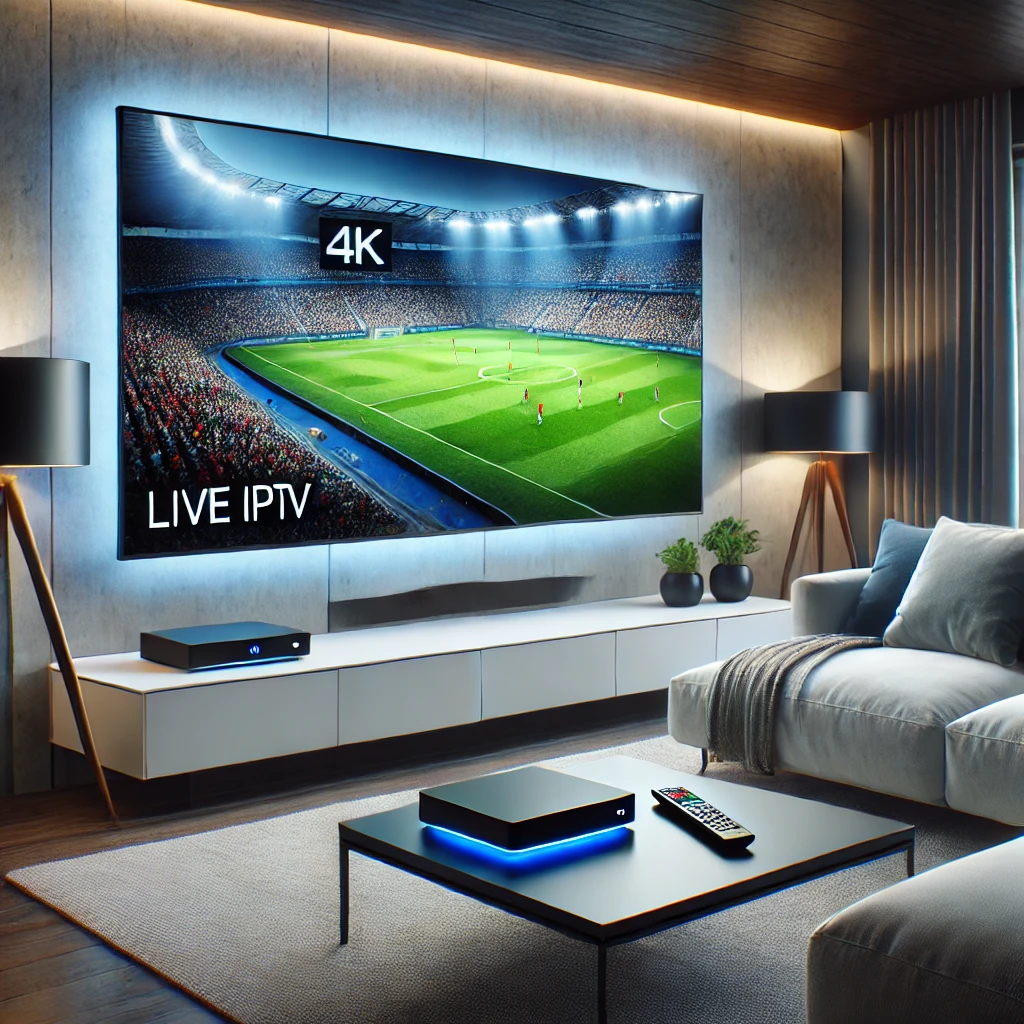
4K live IPTV is real-time television delivered over the internet at 3840 x 2160 resolution — four times the pixel count of 1080p Full HD. To actually see that detail you need a genuine 4K stream (not an upscaled 1080p feed), a 4K-capable screen or streaming box, and a stable connection of at least 25 Mbps per stream, ideally on Ethernet. Done right, it looks better than most cable and satellite packages while giving you thousands of live channels instead of a few hundred.
What Is 4K Live IPTV?
IPTV (Internet Protocol Television) delivers live channels and on-demand content as data packets over a broadband connection instead of through a satellite dish, cable line, or terrestrial antenna. 4K live IPTV specifically means the live channel feed itself — sports, news, entertainment — is encoded and transmitted in Ultra HD rather than standard or high definition.
This matters because a lot of what gets marketed as “4K IPTV” is actually a 1080p or 720p source that a player app upscales on the fly. Upscaling can look sharper than native HD on a big screen, but it is not the same as a true 4K broadcast source, and the difference is obvious in fine detail — grass texture on a football pitch, crowd shots, text overlays. A provider offering genuine 4K live channels should be able to name the source resolution, not just say “4K supported.”
4K vs. Other Resolutions: What You’re Actually Getting
4K (Ultra HD) is 3840 x 2160 pixels, four times the pixel count of 1080p. Here’s how the common resolutions stack up for live streaming:
- SD (480p) — 720 x 480, legacy standard, rarely used for live channels now.
- HD (720p) — 1280 x 720, still common on lower-tier channel feeds.
- Full HD (1080p) — 1920 x 1080, the baseline for most IPTV providers today.
- 4K / UHD — 3840 x 2160, four times 1080p; the current standard for premium live sports and flagship channels.
- 8K — 7680 x 4320, technically available but almost no live broadcast content exists yet, and it needs 60–100+ Mbps sustained.
In 2026, 4K is the practical ceiling for live TV — enough detail improvement to be obvious on a 55″+ screen, without the bandwidth and content-availability problems 8K still has.
Bandwidth and Internet Speed Requirements
The single biggest reason people think “4K IPTV doesn’t work” is insufficient or unstable bandwidth, not a bad provider. Here’s what a stream actually needs:
| Quality | Minimum Speed | Recommended |
|---|---|---|
| SD (480p) | 3 Mbps | 5 Mbps |
| HD (1080p) | 10 Mbps | 25 Mbps |
| 4K (UHD) | 25 Mbps | 50 Mbps+ |
| 8K | 60 Mbps | 100 Mbps+ |
A few details most guides skip:
- It’s not just speed — it’s stability. Keep ping under roughly 20ms and jitter as close to 0ms as possible on your local network. Packet loss above about 0.5% will cause visible stutter even on a fast connection.
- Data usage adds up fast. A single 4K live stream consumes roughly 7GB per hour. If two or three TVs in the house are watching 4K simultaneously, you’re burning 15–20GB an hour — worth checking against any ISP data cap.
- Multiple devices multiply the requirement. Each simultaneous 4K stream needs its own 25 Mbps+ allocation, so a household running two 4K TVs at once should budget 50 Mbps just for IPTV, plus headroom for everything else on the network.
- Codec efficiency matters. Modern 4K IPTV relies on H.265/HEVC encoding, which cuts file size roughly in half versus older H.264 without a visible quality loss — this is what makes 4K live streaming realistic on a normal home connection at all.
Wired vs. Wi-Fi: Why It Changes Everything
A wired Ethernet connection is the single biggest upgrade you can make for reliable 4K live IPTV. Wi-Fi, especially 2.4GHz, is prone to interference, congestion from neighboring networks, and variable jitter — all of which show up as buffering or pixelation even when your raw download speed looks fine on a speed test.
- Ethernet directly to the streaming device eliminates most buffering caused by network instability rather than raw bandwidth.
- If running a cable isn’t practical, use the 5GHz band (or Wi-Fi 6/6E) and keep the device within a clear line of sight of the router.
- A powerline adapter is a good middle ground when Ethernet cabling isn’t feasible — it uses your home’s electrical wiring to carry a wired-quality signal to another room.
HDR and Real-World Picture Quality
Resolution is only half the picture-quality story. HDR (High Dynamic Range) — including HDR10, HDR10+, and Dolby Vision — expands the range of brightness and color a scene can display, which is often more noticeable to the eye than the jump from 1080p to 4K alone. Some premium live sports and flagship entertainment channels now pair 4K resolution with HDR and Dolby Atmos or DTS surround audio, which is where IPTV starts to genuinely rival a premium cable or satellite package.
In practice, real-world 4K IPTV quality depends on four things working together: a true 4K source at the provider’s server, a codec (H.265) efficient enough to survive compression, a connection stable enough to deliver it without dropped frames, and a display/device capable of decoding and rendering it. Weakness in any one of those four will make the stream look like upscaled HD, regardless of what the subscription is labeled.
Devices That Support 4K Live IPTV
Not every streaming device can decode 4K HEVC content smoothly. Devices confirmed to handle 4K live IPTV well:
- Amazon Fire TV Stick 4K / 4K Max — widely used, HEVC hardware decoding, affordable.
- Nvidia Shield TV / Shield TV Pro — strongest processor in this category, best for demanding HEVC 4K streams and large channel lists.
- Apple TV 4K — excellent decoding and HDR/Dolby Vision support, tightly integrated with iOS devices.
- Android TV boxes (MAG, Formuler, etc.) — purpose-built IPTV boxes with dedicated HEVC chipsets.
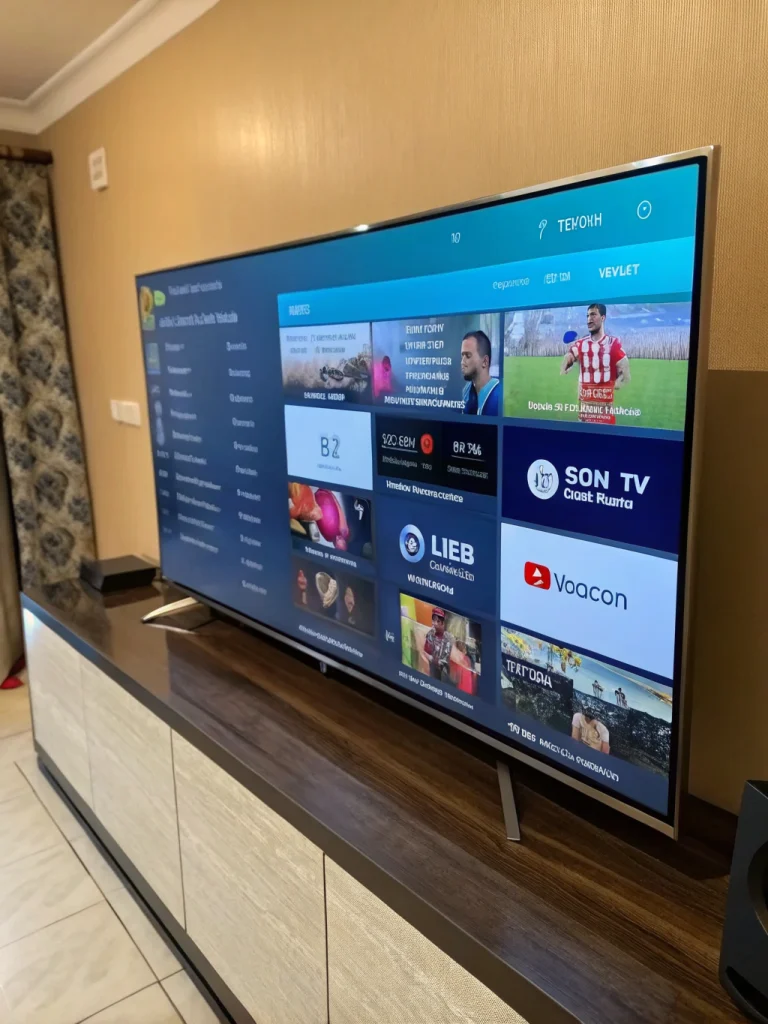
- Modern Smart TVs (Samsung, LG, Sony) — many recent models run IPTV player apps natively without a separate box.
Check the specific IPTV player app’s compatibility list too — see the RevoIPTV applications guide for apps confirmed to work well across these devices.
How to Set Up 4K Live IPTV at Home
- Choose a provider with confirmed 4K sources. Look for an explicit 4K/UHD channel list, not just a generic “4K supported” claim. Compare plans on the RevoIPTV pricing page.
- Pick a capable device from the list above, matched to your TV’s actual HDMI 2.0/2.1 and HDCP 2.2 support (older TVs sometimes block 4K over an unsupported HDMI port).
- Connect via Ethernet where possible, or a strong 5GHz Wi-Fi signal as the fallback.
- Install an IPTV player app (TiviMate, IBO Pro Player, or similar) and enter your provider’s M3U playlist URL or Xtream Codes login. Full walkthroughs are in the RevoIPTV tutorials section.
- Test a known 4K channel first, not a random one — confirm smooth playback for at least 10–15 minutes before assuming the whole service is stable.
- Run a speed test at the TV itself, not just on your phone near the router, since Wi-Fi performance varies by location in the house.
4K Live IPTV vs. Cable, Satellite, and Streaming Bundles
| Service | Typical Channel Count | 4K Live Channels | Contract | Monthly Cost (approx.) |
|---|---|---|---|---|
| Traditional cable | 150–250 | Very limited, add-on tiers | Often 12–24 months | $80–$150+ |
| Satellite TV | 150–300 | Limited, weather-affected | Often 24 months | $70–$130+ |
| Hulu + Live TV | ~90 | Limited selection | None | ~$83 |
| Quality IPTV subscription | 1,000s across regions | Dedicated 4K/8K categories | None, monthly | $15–$30 |
The trade-off: cable and satellite guarantee broadcast-grade reliability regardless of your home internet, while IPTV is only as good as your connection and your provider’s server infrastructure — which is why the setup steps above (Ethernet, provider vetting, device choice) matter so much more for IPTV than for legacy TV.
Troubleshooting Buffering and Quality Drops
Most 4K IPTV quality complaints trace back to one of these, roughly in order of likelihood:
- Wi-Fi instability — switch to Ethernet or move closer to the router before blaming the provider.
- Network congestion — other devices (downloads, video calls, other 4K streams) competing for the same bandwidth.
- Server-side load on the provider — a good provider offers backup stream links or server switching for peak-time sports events; ask before subscribing.
- Outdated app or firmware — update the IPTV player and device OS regularly; decoding efficiency improves with updates.
- Router needs a restart — clears accumulated connection issues; worth doing weekly if you stream heavily.
If buffering persists after ruling out your own network, drop to 1080p temporarily to confirm the issue is bandwidth-related, then step back up to 4K once stable — this isolates whether the problem is your connection or the source stream.
Is 4K Live IPTV Legal?
Legality depends entirely on whether the provider holds proper licensing for the channels it distributes. Legitimate services publish clear terms of service, use standard payment processors, and don’t advertise every premium sports and movie channel at prices far below what licensing would cost. Unlicensed IPTV carries real risk: streams disappear without warning, quality is inconsistent, and there is potential legal exposure for the subscriber. The RevoIPTV FAQ covers how to evaluate a provider’s legitimacy in more detail. For background on how IPTV fits into broader broadcast standards, see the Wikipedia entry on IPTV.
Ready to see real 4K quality on your own setup? Start with a free RevoIPTV trial to test true 4K channels on your device before subscribing, or check the reseller packages if you’re setting this up for multiple households.
Why 4K Frame Rate Matters as Much as Resolution
Resolution is only half the picture. For 4K live TV, the frame rate decides whether fast motion looks sharp or smears. Most films and dramas are mastered at 24fps, but live sports need 50fps (Europe/PAL regions) or 60fps to keep a football, puck, or racing car crisp during quick pans. A true 4K UHD sports feed at 50/60fps carries far more motion detail than a 4K movie channel at 24fps, which is why some 4K live tv broadcasts look smoother than others even at the same resolution. When you stream 4K IPTV of live events, confirm the source is genuinely high-frame-rate 4K and not a 1080p50 feed upscaled to a 4K container.
Bandwidth Planning for More Than One 4K Stream
The single-stream numbers most guides quote assume one TV. Real homes run several at once, and each simultaneous 4k iptv streaming session needs its own headroom on top of browsing, gaming, and cloud backups. Size your plan for peak concurrent use, not the average.
| Household scenario | Concurrent 4K streams | Recommended download speed |
|---|---|---|
| Single viewer | 1 | 50 Mbps |
| Couple, one 4K TV plus browsing | 1 | 75 Mbps |
| Two 4K TVs at once | 2 | 100-120 Mbps |
| Family of four, gaming plus 4K | 2-3 | 200 Mbps+ fibre |
At roughly 7GB per hour per 4K stream, two TVs running an evening of live sport can move 40-50GB, so households on a data cap should budget for it or move to an unlimited plan.
Network Quality Beyond Raw Speed
A fast speed-test result does not guarantee a stable 4k iptv live feed. Live streams are unforgiving of jitter, latency, and dropped packets, and a connection that reads 300 Mbps can still stutter if those metrics are poor. Use these working thresholds when you test the line the box actually uses.
| Metric | Target for stable 4K live | What goes wrong past it |
|---|---|---|
| Latency (ping) | Under 20 ms to ISP node | Longer re-buffer pauses on live feeds |
| Jitter | Close to 0 ms | Glitching frames, audio distortion |
| Packet loss | Under 0.5% | Freezes and dropouts; switch to Ethernet |
Three fixes cover most problems. Enable QoS on your router to prioritise the streaming device so a big download cannot starve it. If you must go wireless, use the 5GHz band, or WiFi 6E on the 6GHz band, rather than congested 2.4GHz. Finally, some ISPs deliberately throttle streaming traffic during peak sports windows; a VPN can restore full speed by hiding the traffic type, though it adds a hop of latency, so test with and without it.
Native 4K Content and Codecs in 2026
Not every channel labelled 4K is broadcast natively. Genuine 4k uhd iptv feeds are still concentrated in premium sport, nature documentaries, and the newest films; much general programming is HD upscaled to fill a 4K frame. On the compression side, H.265/HEVC remains the workhorse that makes 4K viable at 15-25 Mbps, but AV1 is arriving on newer streaming sticks and TVs and delivers similar quality at a lower bitrate. A device that decodes AV1 in hardware will stream 4K more reliably on a modest connection, so it is worth checking when you buy your next player.
Related guides on RevoIPTV: watch live sports, movies and more over IPTV · best IPTV setup for Firestick · TiviMate IPTV player · what an Android TV box is · how to choose the right IPTV service
FAQ
Q: What internet speed do I actually need for 4K live IPTV?
A: A minimum of 25 Mbps per stream, with 50 Mbps or more recommended if other devices share the network. Stability (low jitter, minimal packet loss) matters as much as raw speed.
Q: How much data does 4K IPTV use per hour?
A: Roughly 7GB per hour for a single 4K stream. Running multiple 4K streams at once in the same household can add up quickly against a data cap.
Q: How can I tell if a channel is true 4K or just upscaled?
A: True 4K shows crisp fine detail — individual blades of grass, sharp text, clean skin texture in close-ups — with no soft or blurry edges even in fast motion. Upscaled HD tends to look artificially sharpened rather than genuinely detailed, especially in crowd or texture-heavy scenes.
Q: Do I need a special device, or will any streaming stick work?
A: You need a device with HEVC (H.265) hardware decoding and HDMI 2.0+ output, such as a Fire TV Stick 4K, Nvidia Shield, Apple TV 4K, or a recent smart TV’s built-in apps. Older or budget streaming sticks often can’t decode 4K smoothly even with enough bandwidth.
Q: Is Wi-Fi good enough, or do I need Ethernet?
A: Wi-Fi can work if it’s a strong 5GHz or Wi-Fi 6 signal close to the router, but a wired Ethernet connection is the most reliable fix for buffering and is recommended whenever it’s practical to run a cable.
Q: Are free 4K IPTV services worth trying?
A: Free services typically mean heavy ads, unstable streams, limited channels, and legal uncertainty. A trial from a licensed, reputable paid provider is a far more reliable way to evaluate real 4K quality.
Does 4K live IPTV run at 60fps for live sports?
The best sports feeds do. Live 4K sport is typically delivered at 50fps or 60fps for smooth motion, while 4K movie channels are usually 24fps. High frame rate needs more bandwidth, so a 4K60 sports stream is more demanding than a 4K24 film at the same resolution.
How many Mbps do I need to stream 4K on two TVs at once?
Plan for about 100-120 Mbps for two simultaneous 4K streams, and 200 Mbps or more for a family of four that also games and browses. Each concurrent 4K stream needs its own headroom on top of other household use, so size the plan for peak concurrent load, not the average.
Why does my 4K stream stutter even when my speed test looks fine?
Speed is only one factor. Jitter, latency, and packet loss cause most live-stream stutter. Aim for ping under 20 ms, jitter near 0 ms, and packet loss under 0.5%. If packet loss climbs on Wi-Fi, switch the device to a wired Ethernet connection.
Can a VPN stop my ISP from throttling 4K IPTV?
Often, yes. Some ISPs slow streaming traffic during peak sports windows, and a VPN can restore full speed by masking the traffic type. The trade-off is a little extra latency, so test your stream with and without the VPN and keep whichever is more stable.
What codec does 4K IPTV use, and is AV1 better than H.265?
Most 4K IPTV uses H.265/HEVC, which delivers 4K at roughly 15-25 Mbps. AV1 is a newer codec that reaches similar quality at a lower bitrate, so a device with hardware AV1 decoding can stream 4K more reliably on a modest connection.
Join the conversation
Read next

0 responses on “4K Live IPTV in 2026: The Complete Guide to True Ultra HD Streaming”