
How to Set Up SS IPTV on Smart TV (2026 Guide)
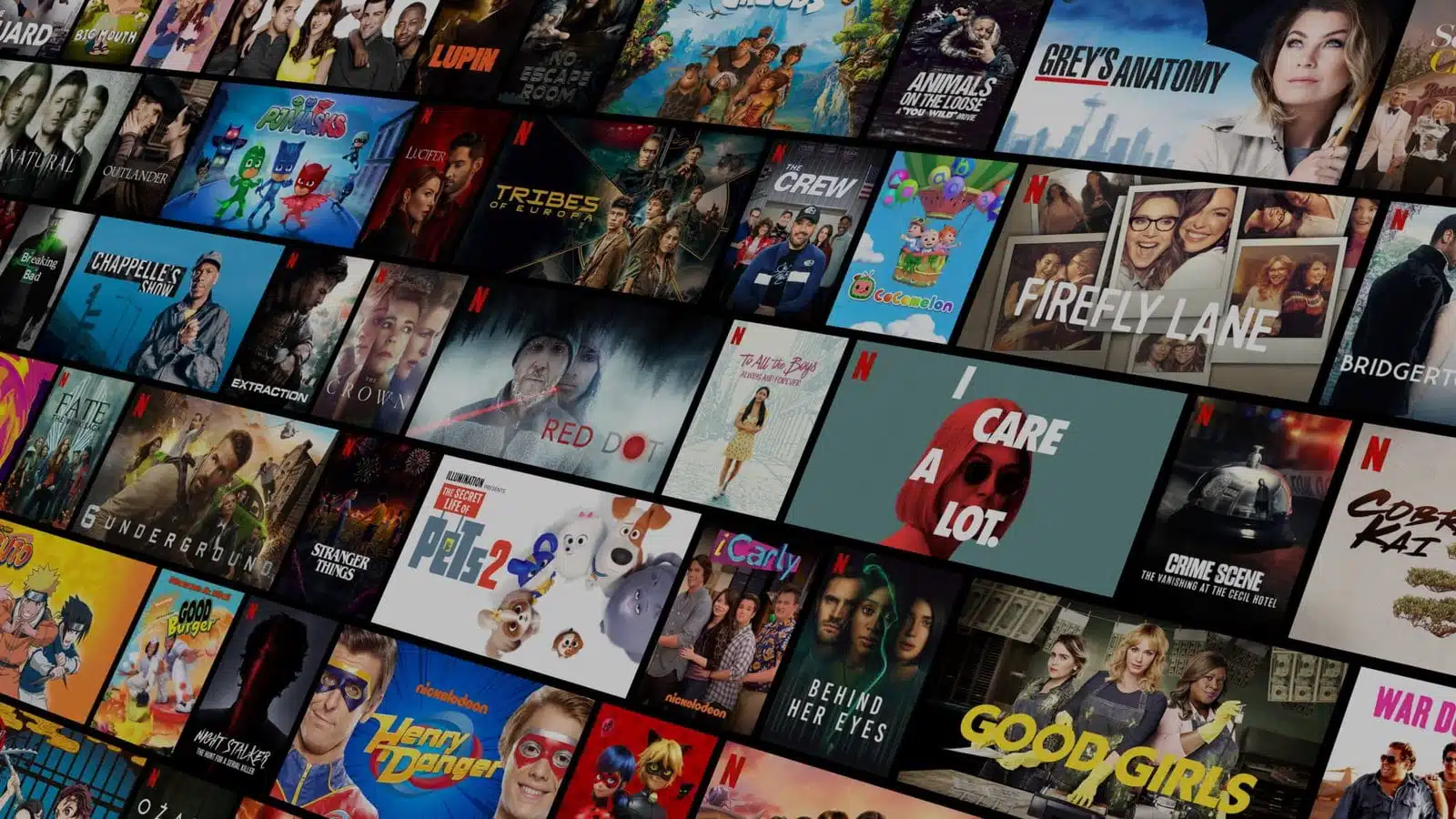
To set up SS IPTV on a Smart TV, install the free app from your TV’s app store (LG Content Store or Samsung Smart Hub), then open Settings > Content > External Playlists > Add and paste your IPTV provider’s M3U playlist URL. Your channels appear as a new tile on the SS IPTV home screen within seconds, complete with categories and an EPG if your provider supplies one.

SS IPTV is one of the most widely used dedicated Smart TV players for live streaming, especially popular with LG and older Samsung TV owners because it needs no Android box, no sideloading, and no MAC-address registration with a third party. Once you have an active IPTV subscription supplying an M3U link, the whole setup takes about five minutes. This guide covers installation on every supported TV brand, both playlist-loading methods, EPG configuration, and the one confusion that trips up almost everyone searching for this app.
SS IPTV vs. SIPTV (Smart IPTV): Don’t Confuse Them
These are two completely different apps with almost identical names, and mixing them up is the number one source of setup frustration. SS IPTV (“Simple Smart IPTV”, developed by ss-iptv.com) loads playlists by pasting a direct M3U URL or by uploading a file through a temporary connection code — no registration required, and it remains free with no in-app purchases. SIPTV (“Smart IPTV”, from siptv.app) instead uses MAC-address activation: you register your TV’s MAC address on the siptv.app site, tie your M3U link to that MAC, and pay a small one-time activation fee after a trial period.
| Feature | SS IPTV | SIPTV (Smart IPTV) |
|---|---|---|
| Developer | ss-iptv.com | siptv.app |
| Cost | Free, no purchases | Free trial, then a one-time paid activation |
| Playlist method | Direct M3U URL or temporary upload code | MAC address registration tied to your playlist |
| Custom EPG (XMLTV) | Supported via x-tvg-url tag in the playlist |
Supported, provider-managed per MAC |
| Samsung install | Smart Hub, D-series and newer | Discontinued from Samsung Apps; needs manual USB sideload on Tizen models |
| Best for | Users who want a quick, code-free setup | Users who prefer MAC-based provider management |
If your provider’s instructions specifically mention a MAC address instead of a playlist URL, you actually want the other app — see our dedicated SIPTV app on Samsung Smart TV guide for that installation path instead.
Is SS IPTV Compatible With Your TV?
SS IPTV is a native Smart TV application, not an Android app, so it installs from each manufacturer’s own app store rather than the Google Play Store. Supported platforms in 2026:
- LG Smart TV: Available in the LG Content Store in all regions, including current webOS models.
- Samsung Smart TV: Available in the Samsung Smart Hub on D-series Tizen models and newer.
- Philips Smart TV: No app store listing — launched via the TV’s built-in browser at app.ss-iptv.com.
- Sony Smart TV: Beta support for 2013 models and newer; some menus and EPG features may be limited.
- Android TV / Android boxes: A separate SS IPTV Android app is available on Google Play for devices running Android TV OS.
For a full comparison of players that work with your subscription, see the RevoIPTV applications page.
How to Install SS IPTV on Your Smart TV
LG Smart TV
- Press the Home button on your remote.
- Open the LG Content Store.
- Search for SS IPTV.
- Select the app and click Install.
- Launch SS IPTV from your app list once installation finishes.
Samsung Smart TV
- Press the Smart Hub button on your remote.
- Navigate to Apps and open the search field (magnifying glass icon).
- Type SS IPTV and select it from the results.
- Click Install, then Open once it finishes.
Philips Smart TV
- Open the TV’s built-in web browser.
- Enter app.ss-iptv.com in the address bar and press Enter.
- The SS IPTV interface loads directly in the browser — no install needed.
How to Add Your IPTV Playlist to SS IPTV
SS IPTV offers two ways to load your channel list. Method 1 is recommended for most users because it takes under a minute and updates automatically whenever your provider refreshes the playlist.
Method 1 — Add Playlist by URL
- Open SS IPTV and press the Settings button on the main screen.
- Go to Content > External Playlists.
- Press Add at the bottom of the screen.
- Enter a name for the playlist (e.g. “RevoIPTV”) and paste your M3U URL into the link field.
- Press Save.
- Return to the Main Screen — your playlist appears as its own tile. Select it to browse channels.
Method 2 — Upload Playlist via Temporary Code
Use this method only if you have an M3U file saved locally instead of a public URL.
- In SS IPTV settings, go to General and press Get Code.
- Note the code shown on screen. It is valid for 24 hours only.
- On a computer, open ss-iptv.com/en/users/playlist.
- Enter the code and click Add Device.
- Select your M3U file and click Save to push it to the TV.
- Back on the TV, the playlist appears as My Playlist on the Main Screen.
Note: Uploading a new internal playlist replaces the previous one. You can keep several external (URL-based) playlists active at once, but only one internal (uploaded) playlist for live channels and one for VOD at a time.
Setting Up the EPG (TV Guide) in SS IPTV
This is the step most competing guides skip, and it’s the most common reason the channel guide shows up blank. SS IPTV does not scan channels automatically for program data — the EPG source has to be declared explicitly. Ask your IPTV provider for an XMLTV EPG URL, then add the following directive to the very top of your M3U playlist, before the first channel entry:
#EXTM3U x-tvg-url="https://your-provider-epg-url.xml"
SS IPTV supports both the lightweight JTV format and the more common XMLTV format. If you’re building or hosting the EPG file yourself rather than relying on your provider, the host server must return an Access-Control-Allow-Origin: * header, or the TV app will silently fail to load the guide — a common but easy-to-miss cause of a persistently blank EPG even when the URL itself is correct.
Key Features of SS IPTV
- Playlist format support: M3U, XSPF, ASX, and PLS — covers every common IPTV subscription format.
- Built-in TV Guide: Displays program schedules and supports scheduled automatic channel switching when EPG data is present.
- Parental controls: Lock individual channels or whole categories behind a PIN code.
- Appearance settings: Customize the grid layout, font size, and color theme.
- Partnered operator catalogues: Some IPTV operators are pre-integrated, letting subscribers skip manual playlist entry entirely.
- Multi-playlist support: Run several external playlists side by side, useful if you subscribe to more than one service or keep a backup playlist.
Tips and Troubleshooting
- Channels not loading: Re-copy the M3U URL directly from your account portal — a single missing character breaks the link, and copy-paste errors are the most common failure.
- Buffering during playback: SS IPTV streams over your home network, so connect the TV via Ethernet rather than Wi-Fi for stable HD and 4K playback, particularly on older TVs with weaker Wi-Fi chipsets.
- Code expired: Codes for Method 2 last 24 hours. If it lapses before you upload, just generate a fresh one from General settings.
- EPG guide is blank: Confirm the
x-tvg-urltag is present in your playlist and that the EPG host allows cross-origin requests (see the EPG section above). - App not found in the store: Pre-D-series Samsung models aren’t supported. Check the IPTV applications list for an alternative player, or see our SIPTV on Samsung guide for a manual sideload path.
- No group/category support: Very old SS IPTV builds sometimes ignore
group-titletags in the playlist. Updating the app to the latest store version usually resolves this.
Not sure which subscription tier fits your household? Compare options on the RevoIPTV pricing page, or browse the tutorials hub for setup guides covering Kodi, MAG boxes, Fire Stick, and more. IPTV resellers can find bulk plans on the reseller packages page.
FAQ
What is SS IPTV?
SS IPTV is a free, dedicated Smart TV application for LG, Samsung, Philips, and Sony televisions that streams live IPTV channels from an M3U playlist or partnered operator catalogue. It requires no Android box or extra hardware.
Is SS IPTV the same as SIPTV or Smart IPTV?
No. SS IPTV (ss-iptv.com) loads channels via a direct playlist URL or upload code and stays free. SIPTV (siptv.app) instead ties your playlist to your TV’s MAC address and charges a small one-time activation fee after a trial. They are built by different developers and are not interchangeable — see our SIPTV setup guide if that’s the app your provider referenced.
Is SS IPTV free to use?
Yes, the app itself is completely free with no in-app purchases. You still need a separate IPTV subscription to supply the M3U playlist URL — you can test one with a free RevoIPTV trial before committing to a plan.
Which Smart TVs does SS IPTV support?
SS IPTV natively supports LG (LG Content Store, all regions), Samsung D-series and newer (Smart Hub), Philips (via the built-in browser at app.ss-iptv.com), and Sony 2013 models or newer (beta). An Android TV version is also available on Google Play.
How do I add my IPTV playlist to SS IPTV?
Go to Settings > Content > External Playlists > Add, then enter a name and paste your M3U URL before pressing Save. Your channels appear as a new tile on the Main Screen immediately.
Why is my SS IPTV TV guide (EPG) blank?
SS IPTV needs an explicit EPG source — add an x-tvg-url tag pointing to your provider’s XMLTV file at the top of your playlist. If you host the file yourself, the server must send an Access-Control-Allow-Origin: * header or the guide will fail to load even with a correct URL.
Join the conversation
Read next

What Is a MAG Box? IPTV Set-Top Boxes Explained (2026)
How to Record IPTV on a MAG Box (2026 Step-by-Step Guide)
0 responses on “How to Set Up SS IPTV on Smart TV (2026 Guide)”