
Best IPTV App for Smartphone in 2026: Android & iOS Setup Guide
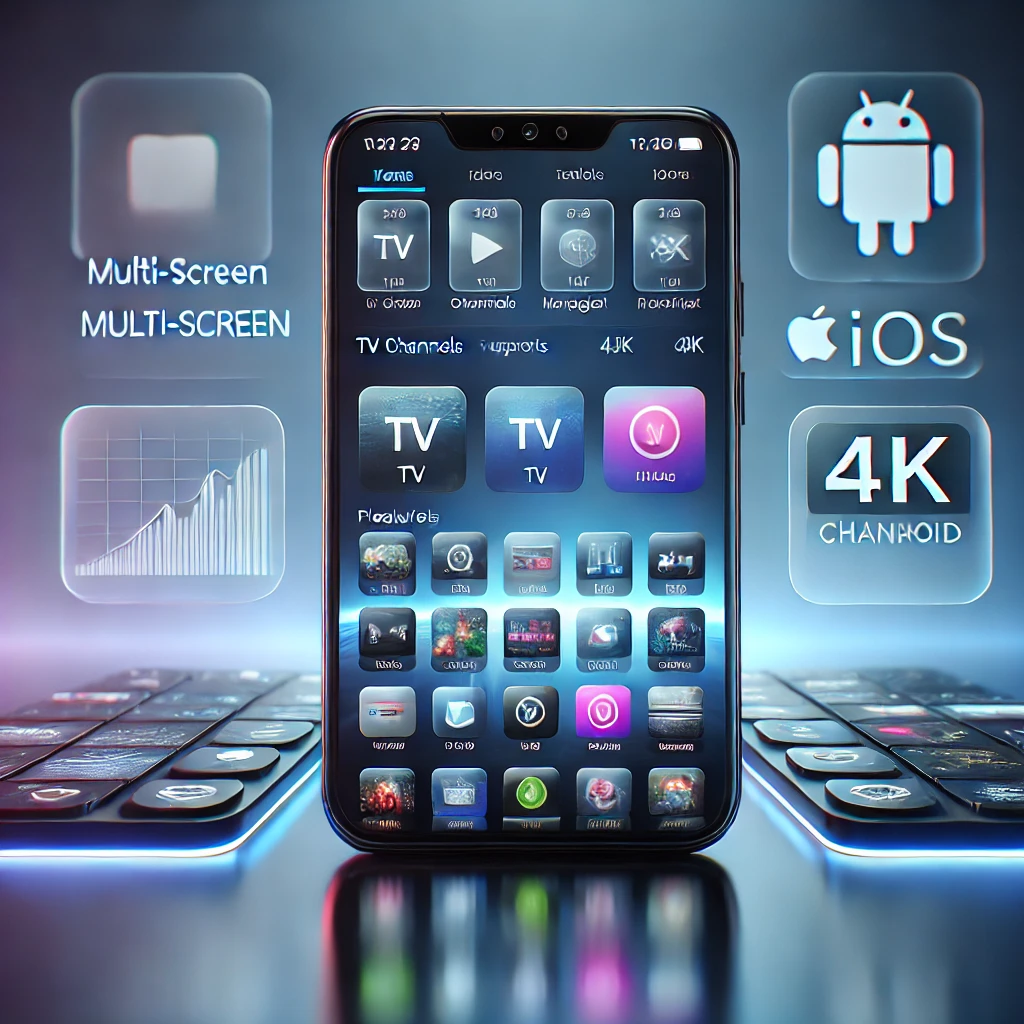
The best IPTV app for smartphone use in 2026 is IPTV Smarters Pro for most people, because it runs on both Android and iOS, supports M3U and Xtream Codes logins, and adds catch-up TV and multi-screen viewing. Setup takes under five minutes: install the app, enter the playlist URL or Xtream Codes credentials your provider gives you, and your channels load automatically.
This guide compares the five apps worth installing on a phone or tablet in 2026, gives you a universal setup walkthrough that works with any of them, and covers the mobile-specific issues — data usage, screen mirroring to a TV, and buffering fixes — that most other guides skip. If you don’t have an IPTV subscription yet, you can start a free RevoIPTV trial to get a working M3U link before you begin.
What You Need Before Installing an IPTV App on Your Phone
- An active IPTV subscription. Your provider issues either an M3U playlist URL or Xtream Codes login (server address, username, password). Confirm the plan includes mobile/multi-device access.
- A stable connection. Aim for at least 10 Mbps for HD and 25 Mbps for 4K. 5G or a solid 4G LTE signal both work, but Wi-Fi is more consistent for long viewing sessions.
- Enough storage and a current OS. Most IPTV apps need under 100 MB, but keep Android 8+ or iOS 15+ for smooth hardware-accelerated playback.
- Your EPG URL (optional). A separate electronic program guide link, if your provider supplies one, adds a scrollable TV guide with show times and descriptions.
Best IPTV Apps for Smartphone: Android vs iOS at a Glance
Not every app is available on both platforms, which is the first filter most buying guides skip. Here’s what actually installs where:
| App | Android | iOS | Best for |
|---|---|---|---|
| IPTV Smarters Pro | Yes | Yes | Cross-platform households, Xtream Codes users |
| GSE Smart IPTV | Yes | Yes | Multiple playlists, custom EPG formats |
| IBO Player Pro | Yes | Yes | 4K playback, multilingual audio tracks |
| TiviMate | Yes | No | TV-style guide, DVR/time-shift on tablets |
| Perfect Player IPTV | Yes | No | Lightweight, no-subscription local option |
1. IPTV Smarters Pro (Android & iOS)
IPTV Smarters Pro is the most widely installed IPTV player worldwide, and the safest default recommendation because it behaves identically on both major mobile platforms. It handles both M3U and Xtream Codes API logins natively.
Key features:
- Multi-screen support — view several channels at once on tablets
- Catch-up TV for providers that support it
- Built-in parental controls with PIN-locked categories
- External player routing to VLC or MX Player for stubborn codecs
- Separate Live TV, Movies, and Series libraries when using Xtream Codes
Setup steps:
- Install IPTV Smarters Pro from the Google Play Store or Apple App Store.
- Open the app and tap Add User.
- Choose Load Your Playlist or File/URL for M3U, or Login with Xtream Codes API for a username/password login.
- Paste the URL or credentials from your provider and tap Add User.
- Your Live TV, VOD, and series library loads within seconds.
2. GSE Smart IPTV (Android & iOS)
GSE Smart IPTV is the strongest choice if you juggle more than one playlist or need XMLTV/JTV EPG compatibility. Full walkthrough in our dedicated GSE Smart IPTV setup guide.
Setup steps:
- Download GSE Smart IPTV from the App Store or Google Play.
- Tap the menu icon and select Remote Playlists.
- Tap +, then choose Add M3U URL or Xtream Codes API.
- Enter your playlist URL or credentials and save.
- Channels appear in the main library, ready to play.
3. IBO Player Pro (Android & iOS)
IBO Player Pro targets users who prioritize picture quality: it supports full 4K playback and integrates MX Player and VLC engines for broader codec coverage than most players offer out of the box.
Setup steps:
- Download IBO Player Pro from the App Store, Google Play, or iboplayer.pro.
- Register a free account through the app or IBO’s web portal.
- Import your M3U playlist URL.
- Activate a premium tier via Google Pay or PayPal if your provider requires it.
- Open the app — channels load automatically.
4. TiviMate (Android only)
TiviMate has no iOS version, but on Android phones and tablets it offers the closest thing to a true TV-guide experience, plus DVR and time-shift for providers that support recording.
Setup steps:
- Install TiviMate from the Google Play Store.
- Tap Add Playlist.
- Paste your M3U URL or enter Xtream Codes credentials.
- Name the playlist and configure the EPG.
- Tap Finish to load the guide-style channel list.
5. Perfect Player IPTV (Android only)
Perfect Player is the lightest option here — a classic on-screen display with no forced account creation, useful as a backup player or for less powerful older phones.
Setup steps:
- Install Perfect Player from the Google Play Store.
- Open Settings (gear icon) > General.
- Enter your playlist URL in the Playlist field and your EPG URL in the EPG field.
- Tap OK and restart the app so channels populate.
Universal Setup: Connecting Any IPTV App on Your Phone
Every app above follows the same underlying pattern, so once you understand it you can set up a replacement app in minutes if you ever switch:
- Install the app from the Google Play Store or Apple App Store — avoid sideloaded APKs on Android, since they skip Play Protect scanning.
- Find the playlist/account screen, usually labeled Add Playlist, Add User, or Remote Playlists.
- Enter your credentials. M3U needs only a single URL. Xtream Codes needs a server address, username, and password — RevoIPTV subscribers find both formats in their account dashboard.
- Let the channel list and EPG load. Channels usually populate in 10–30 seconds; the full program guide can take a few minutes on the first load.
- Browse Live TV, VOD, and Series from the app’s main menu and tap any title to start streaming.
See the full list of supported devices on the RevoIPTV applications page, compare plans on the IPTV pricing and subscriptions page, or browse more device walkthroughs in the RevoIPTV tutorials hub.
Mobile Data Usage: What IPTV Actually Costs You
Streaming on a phone raises a question desktop and TV-box guides rarely answer directly: how much data does it burn? As a rule of thumb:
- SD streams: roughly 0.7–1 GB per hour
- HD streams: roughly 1.5–3 GB per hour
- 4K streams: roughly 5–7 GB per hour
On a 10 GB mobile plan, a single evening of HD viewing on cellular data can use most of your monthly allowance. Most apps let you cap streaming quality specifically for mobile data in their playback or network settings — set this once and you avoid surprise overage charges without having to remember to switch quality manually every session.
Casting IPTV From Your Phone to a TV
A phone app is also the fastest way to get IPTV onto a television that doesn’t run its own app store. Two reliable options:
- Google Cast / Chromecast built-in: IPTV Smarters Pro and GSE Smart IPTV both include a cast icon in the player bar. Tap it, select your Chromecast or Android TV device on the same Wi-Fi network, and playback switches to the television.
- Screen mirroring (AirPlay or Android’s Cast Screen): iPhones use AirPlay to an Apple TV or AirPlay-compatible smart TV; Android phones use the built-in ‘Cast’ or ‘Smart View’ screen-mirroring option in the quick-settings panel. Mirroring duplicates the entire phone screen, so it works even with apps that lack a dedicated cast button, at the cost of slightly higher latency.
Troubleshooting: Fixing Buffering and Login Errors on Mobile
Work through these in order — most mobile playback problems are solved by the first two steps:
- Check your connection speed. Run a speed test; anything under 10 Mbps will struggle with HD content on a shared network.
- Lower the stream quality in the app’s playback settings from HD/Auto to SD to see if buffering stops.
- Close background apps. Social media, cloud backup, and messaging apps sync in the background and quietly compete for the same bandwidth your stream needs.
- Switch to an external player. If a channel won’t play at all, route it through VLC via the app’s external player option — VLC supports a broader range of codecs than most built-in players.
- Re-check your subscription status. Expired or suspended credentials often produce a blank screen or generic error rather than a clear ‘subscription expired’ message — log in to your provider dashboard to confirm your plan is active before assuming it’s an app fault.
- Reinstall or clear cache if the app itself fails to load channels after a playlist entry that used to work — corrupted local cache is a common cause after an app update.
Tips for the Best IPTV Experience on Mobile
- Prefer 5 GHz Wi-Fi over 2.4 GHz when both are available — it has less interference and higher throughput for video.
- Keep your app updated. IPTV player updates regularly patch playback bugs and codec compatibility; enable auto-updates in your app store.
- Use multi-connection plans if multiple people stream at once. A single-connection subscription will kick a second device off mid-stream.
- Save battery on long sessions by lowering screen brightness and disabling background app refresh for unrelated apps while streaming.
FAQ
Which is the best IPTV app for iPhone in 2026?
IPTV Smarters Pro and GSE Smart IPTV are the strongest iOS choices in 2026 — both are on the Apple App Store, support M3U and Xtream Codes, and include full EPG support. IBO Player Pro is also available on iOS and is the better pick specifically for 4K streams.
What is the difference between M3U and Xtream Codes login?
M3U is a single playlist URL that lists every channel and its stream link — setup is one paste and done. Xtream Codes uses three separate credentials (server address, username, password) issued by your provider, and typically unlocks a more structured interface with separate Live TV, Movies, and Series sections plus built-in EPG sync.
Can I watch IPTV on my smartphone using mobile data?
Yes. SD streams need roughly 2–4 Mbps and HD streams need around 10 Mbps, both achievable on 4G or 5G. Expect to use 1.5–3 GB per hour of HD viewing, so cap your app’s mobile-data quality setting or switch to Wi-Fi for longer sessions to avoid burning through your data plan.
Does my IPTV subscription work on multiple smartphones at once?
That depends on your plan’s connection limit, not the app. RevoIPTV offers multi-connection packages that allow simultaneous streams on separate devices — check your plan details to confirm how many concurrent connections your subscription includes.
Why does my IPTV app keep buffering on my phone?
Buffering on mobile is almost always a bandwidth or background-app issue rather than the IPTV app itself. Check your connection speed, close bandwidth-hungry background apps, lower stream quality, or route the channel through an external player like VLC. If it persists across every channel, confirm your subscription is still active.
Is it legal to use IPTV apps on a smartphone?
Yes — IPTV player apps themselves are legal software, comparable to any other video player. Legality depends entirely on whether the content source is properly licensed. Subscribing to a legitimate provider that holds the rights to the channels it distributes keeps you on the right side of copyright law — see the Wikipedia overview of IPTV for background on how the technology and licensing model works.
Join the conversation
Read next

0 responses on “Best IPTV App for Smartphone in 2026: Android & iOS Setup Guide”